Audio Tag (<audio>)
Introduction
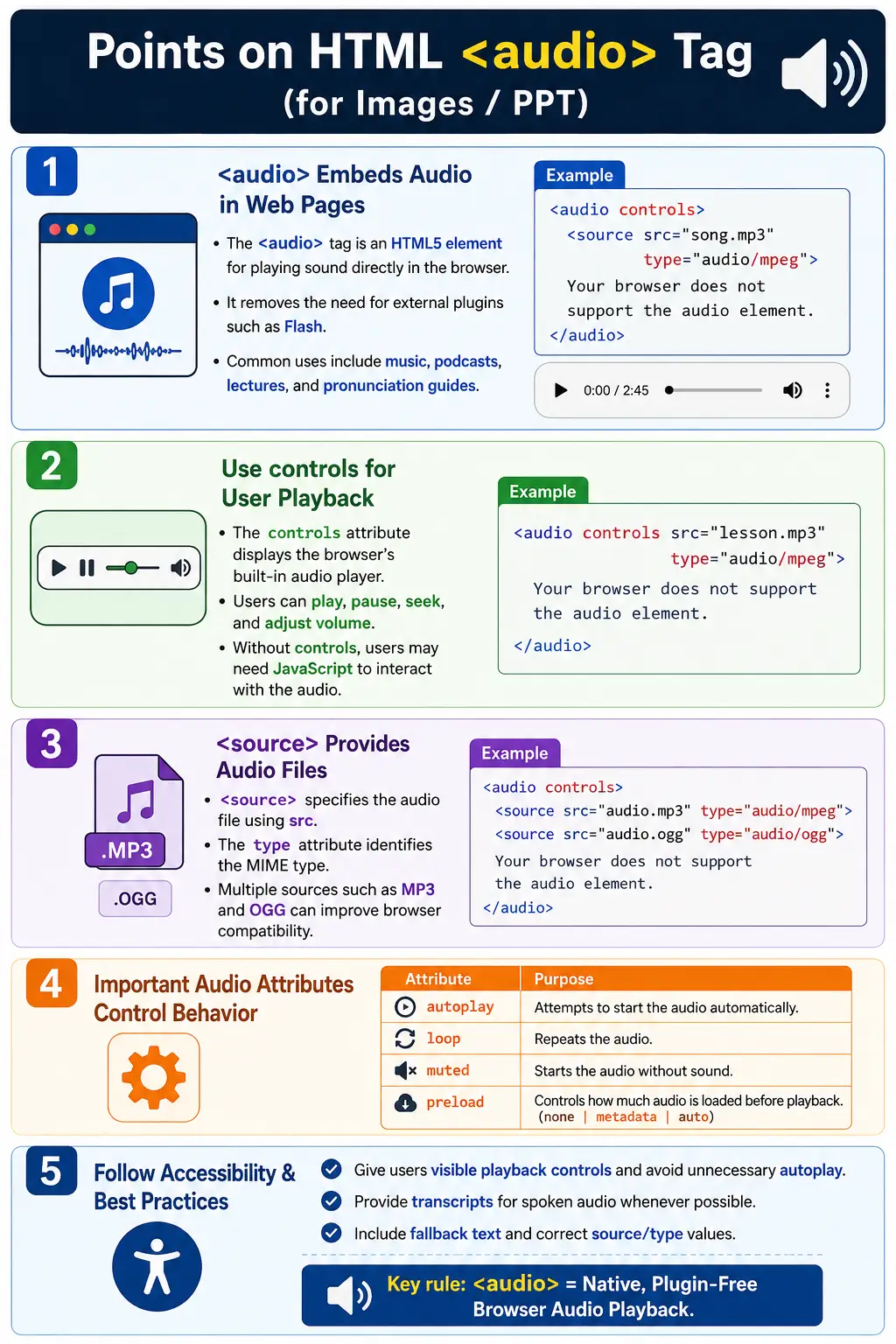
The <audio> tag is an HTML5 element used to embed and play audio files directly inside a web page. It allows browsers to play sound without requiring external plugins such as Adobe Flash, QuickTime, or Windows Media Player plugins. This was a major improvement for the web because audio became a native browser feature instead of a plugin-dependent experience.
With the <audio> element, users can play audio, pause audio, control volume, seek forward and backward, and in some browsers download the audio file. It is commonly used for music, podcasts, lectures, online courses, sound effects, meditation tracks, pronunciation guides, and language learning content.
A basic example looks like this:
<audio controls>
    <source src="song.mp3" type="audio/mpeg">
</audio>
When the browser renders this markup, it displays a native audio player with playback controls. The exact visual design of the player depends on the browser and operating system, but the purpose remains the same: users can interact with the audio directly on the page.
What Is the <audio> Tag?
The <audio> tag tells the browser that an audio resource should be loaded and made available for playback. Unlike an image, audio cannot be displayed visually as content by itself. Because of that, the browser provides a player interface when the controls attribute is used.
In simple terms, the audio element tells the browser: load this audio file, display an audio player if controls are requested, and allow the user to play it. The element acts as a container for one or more audio sources and for fallback text that can be shown if the browser does not support audio playback.
This makes the <audio> tag an important part of modern multimedia HTML. It lets developers add sound in a standardized way while giving users familiar browser controls.
Why the Audio Tag Was Introduced
Before HTML5, playing audio on the web was often difficult and inconsistent. Websites commonly depended on browser plugins such as Adobe Flash, QuickTime, or Windows Media Player plugins. These plugins created several problems. Users had to install them, keep them updated, and trust them from a security perspective. Different browsers supported plugins differently, and mobile browser support was often poor.
Plugin-based media also made websites harder to maintain. Developers had to account for missing plugins, browser compatibility issues, and inconsistent user experiences. Security issues were common because plugins had broad access and were frequent targets for attacks.
HTML5 solved many of these problems by introducing native media elements such as <audio> and <video>. Audio playback became part of the browser itself. This improved compatibility, security, mobile support, and developer experience.
Basic Syntax
The simplest structure of an audio element includes the <audio> container and a <source> element pointing to an audio file.
<audio>
    <source src="song.mp3">
</audio>
In most real pages, you should include the controls attribute so users can interact with the player.
<audio controls>
    <source src="music.mp3"
            type="audio/mpeg">
</audio>
The browser output is a built-in audio player. It usually includes a play button, progress bar, time display, and volume control. Some browsers also show a download option, depending on browser behavior and server configuration.
Browser Rendering Process
When a browser reads an HTML document and finds an <audio> element, it processes it as a media resource. The browser checks the child <source> elements, decides which source it can play, and prepares the audio player.
HTML Parser
    ↓
Finds <audio>
    ↓
Reads <source>
    ↓
Downloads Audio
    ↓
Displays Audio Player
    ↓
User Clicks Play
    ↓
Audio Starts
The actual download behavior can depend on the preload attribute, browser settings, network conditions, and whether the user starts playback. The browser is responsible for decoding and playing the audio file once it selects a supported source.
The controls Attribute
The controls attribute tells the browser to display the built-in audio controls. This is one of the most important attributes for practical audio usage because it gives users direct control over playback.
<audio controls>
    <source src="song.mp3"
            type="audio/mpeg">
</audio>
Controls typically include play, pause, progress bar, volume control, playback duration, and sometimes a download option. The exact interface differs between browsers, but the user receives a usable audio player.
Without controls, the audio may exist in the document but the user may not be able to interact with it unless JavaScript is used.
<audio>
    <source src="song.mp3">
</audio>
Audio Exists
↓
No Visible Player
↓
User Cannot Control PlaybackFor most educational, podcast, course, and content pages, visible controls are the right choice.
The <source> Tag
The <source> element specifies the audio file used by the <audio> element. It is usually placed inside the audio element and includes a src attribute and often a type attribute.
<audio controls>
    <source src="podcast.mp3"
            type="audio/mpeg">
</audio>
The advantage of using <source> is that you can provide multiple audio formats for browser compatibility. The browser tries each source in order and plays the first one it supports.
<audio controls>
    <source src="audio.mp3"
            type="audio/mpeg">

    <source src="audio.ogg"
            type="audio/ogg">
</audio>
This approach is useful because not all formats have historically been supported equally across browsers. Providing multiple sources makes the media experience more reliable.
The src and type Attributes
The src attribute specifies the location of the audio file. It can point to a relative file path within the project or an absolute URL from another server.
<source src="music.mp3">In this case, the browser downloads music.mp3. The type attribute tells the browser the file format using a MIME type.
<source src="music.mp3"
        type="audio/mpeg">
Providing the correct MIME type helps browsers process the file efficiently because the browser can understand the format before downloading or decoding the resource.
| Audio Format | MIME Type |
|---|---|
| MP3 | audio/mpeg |
| WAV | audio/wav |
| OGG | audio/ogg |
Multiple Audio Sources
Multiple audio sources allow the browser to choose a supported format. The browser reads the source list from top to bottom. If it supports the first format, it plays that file. If not, it tries the next one.
<audio controls>
    <source src="song.mp3"
            type="audio/mpeg">

    <source src="song.ogg"
            type="audio/ogg">
</audio>
Supports MP3?
↓
Yes
↓
Play MP3
Otherwise
↓
Try OGGThis pattern is similar to how images and videos can provide alternative resources. It makes the page more dependable across different browsers, devices, and operating systems.
Fallback Content
Fallback content is text placed inside the <audio> element after the source elements. It is displayed by older browsers that do not support the audio element.
<audio controls>
    <source src="song.mp3"
            type="audio/mpeg">

    Your browser does not support audio.
</audio>
Modern browsers will ignore the fallback text and display the audio player. Older browsers can show the message so users understand why the audio player is missing. Fallback text is a small addition, but it makes the markup more complete and user-friendly.
Supported Audio Formats
MP3 is the most widely used and widely supported audio format on the web. It is commonly used for music, podcasts, online courses, interviews, and general audio content. Its file extension is .mp3, and its MIME type is audio/mpeg.
WAV is a high-quality audio format, but it usually creates much larger files. It is useful for sound editing, professional recordings, and situations where quality matters more than file size. Its file extension is .wav, and its MIME type is audio/wav.
OGG is an open-source audio format. It is often used alongside MP3 for compatibility or licensing reasons. Its file extension is .ogg, and its MIME type is audio/ogg. In practical web pages, MP3 is usually the safest default, with OGG as an optional alternative.
Audio Player Example
An audio player can be used for online lectures, tutorials, language learning lessons, podcasts, or pronunciation examples.
<audio controls>
    <source src="lecture.mp3"
            type="audio/mpeg">
</audio>
This kind of player is useful when audio supports the page content. For example, a language learning page may explain a word and provide an audio pronunciation. A course page may include a lecture recording. A meditation page may include a guided audio track.
The autoplay Attribute
The autoplay attribute attempts to start playback automatically when the page loads.
<audio autoplay>
    <source src="music.mp3">
</audio>
Modern browsers often block autoplay, especially when audio is not muted. This is intentional because unexpected sound can annoy users and create accessibility problems. Browsers may allow autoplay if the audio is muted or if the user has already interacted with the page.
Autoplay should be used carefully. In most cases, users should decide when audio starts. For educational pages, course pages, podcasts, and articles, visible controls are usually better than automatic playback.
The loop Attribute
The loop attribute repeats the audio continuously. When playback reaches the end, the browser starts the audio again from the beginning.
<audio controls loop>
    <source src="rain.mp3">
</audio>
Play
↓
End
↓
Restart
↓
RepeatThis is useful for ambient sounds, background loops, meditation tracks, or repeated sound effects. It should be used only when repetition is expected and helpful.
The muted Attribute
The muted attribute starts audio in a muted state. The user can usually unmute it through the browser controls.
<audio controls muted>
    <source src="song.mp3">
</audio>
Muted audio is sometimes used when autoplay behavior is required, but for most normal audio content, the better approach is to let users click play themselves.
The preload Attribute
The preload attribute controls how much audio the browser should download before playback begins. It helps developers communicate loading intent, although browsers may still make their own decisions based on conditions.
The main values are none, metadata, and auto.
<audio preload="none">preload="none" tells the browser not to download the audio until the user starts playback. This is useful when there are many audio files on one page.
<audio preload="metadata">preload="metadata" downloads only basic information such as duration, file size, and metadata. This gives the browser enough information to display useful details without downloading the full file.
<audio preload="auto">preload="auto" allows the browser to download the entire file in advance if it chooses. This can improve playback readiness but may use more bandwidth.
Relative and Absolute Paths
Audio sources can use relative paths or absolute URLs. A relative path points to a file inside the same project structure.
<audio controls>
    <source src="audio/song.mp3">
</audio>
project/
index.html
audio/
song.mp3An absolute URL points to an audio file hosted elsewhere.
<audio controls>
    <source src="https://example.com/song.mp3">
</audio>
When using external URLs, make sure the remote server allows the file to be accessed and provides the correct content type.
Accessibility Considerations
Accessible audio should give users control. The controls attribute is important because users need to pause, replay, adjust volume, and seek through the content. Auto-playing audio can be disruptive, especially for screen reader users or users in shared environments.
For spoken content, provide a transcript whenever possible. A transcript makes the audio content available to users who are deaf, hard of hearing, in a quiet environment, or unable to play sound. It also helps users skim the content and search for specific information.
Descriptive surrounding text also matters. If the audio is a lecture, label it clearly. If it is a pronunciation guide, explain what word or phrase is being pronounced. Audio should not appear without context.
SEO Considerations
Search engines cannot understand spoken audio as directly as they understand visible text. To improve discoverability, provide transcripts, descriptive page content, meaningful headings, and structured metadata where appropriate.
A podcast page, for example, should include the episode title, summary, transcript, speaker information, and relevant headings. The audio file itself is useful to users, but the surrounding HTML content gives search engines and assistive technologies more context.
Common Use Cases
The <audio> tag is used in many real-world scenarios. Podcasts use it to embed episodes directly on a webpage. Online courses use it for lectures or listening exercises. Language lessons use it for pronunciation guides. Music pages use it for previews. Meditation websites use it for guided audio. Games and interactive pages may use audio for sound effects, although JavaScript often controls more complex sound behavior.
The common theme is simple: whenever users need to listen to audio content inside a webpage, the <audio> element provides a native HTML solution.
Common Mistakes
One common mistake is forgetting the controls attribute.
<audio>
    <source src="song.mp3">
</audio>
Users cannot interact with this audio unless JavaScript provides controls. A better version is:
<audio controls>
    <source src="song.mp3">
</audio>
Another mistake is providing only an unsupported format or using a wrong extension. If the browser cannot play the file, the audio will fail. Missing fallback content is also a common issue. A more complete example includes controls, source, type, and fallback text.
<audio controls>
    <source src="song.mp3" type="audio/mpeg">
    Your browser does not support audio.
</audio>
Using autoplay unnecessarily is another serious mistake. Unexpected sound can frustrate users and may be blocked by browsers anyway. Use autoplay only when there is a clear reason.
Real-World Example
A course pronunciation lesson can use the audio tag to let users hear a word or phrase directly on the page.
<h2>HTML Pronunciation</h2>

<audio controls>
    <source src="html-pronunciation.mp3"
            type="audio/mpeg">

    Your browser does not support audio.
</audio>
This example is simple, accessible, and easy to maintain. Users can play the pronunciation, pause it, replay it, and control the volume without any custom JavaScript.
Selenium Perspective
From a Selenium testing perspective, the audio element can be located and inspected like any other HTML element. Automation tests can verify that the audio element exists, that the correct source is configured, and that important attributes are present.
WebElement audio =
driver.findElement(By.tagName("audio"));
A test can check whether controls exist:
String controls =
audio.getAttribute("controls");

System.out.println(controls);
A test can also check autoplay:
String autoplay =
audio.getAttribute("autoplay");
Automation teams commonly verify that the audio element is present, the correct source is configured, controls are available, and attributes such as autoplay, loop, and muted are set correctly. Full audio playback validation may require additional browser or media testing approaches, but attribute-level validation is straightforward.
Common Interview Questions
A common interview question is: what is the purpose of the <audio> tag? The answer is that it embeds audio directly into a web page using native browser support.
Another question is: why is the <source> tag used? It allows multiple audio formats so browsers can choose a supported one. Which attribute displays the audio player? The answer is controls.
Interviewers may also ask what the loop attribute does. It replays the audio automatically after it finishes. What does the preload attribute control? It specifies how much of the audio should be downloaded before playback. Why should fallback text be included? It informs users when their browser does not support the <audio> element.
Comparison Table
| Attribute | Purpose |
|---|---|
controls |
Displays playback controls |
autoplay |
Attempts to start playback automatically |
loop |
Repeats the audio continuously |
muted |
Starts playback muted |
preload |
Controls preloading behavior |
src |
Specifies the audio file location |
type |
Identifies the audio format |
Interview-Ready Answer
The <audio> tag is an HTML5 element used to embed audio directly into web pages without requiring plugins. It typically contains one or more <source> elements that specify different audio formats. Attributes such as controls, autoplay, loop, muted, and preload control playback behavior, while providing multiple sources improves browser compatibility.
Key Takeaway
The <audio> tag brings native, plugin-free audio playback to the web. It simplifies media embedding, improves compatibility, and gives users familiar browser controls. For most content pages, the best practice is to use controls, provide correct source and type values, include fallback text, avoid unnecessary autoplay, and provide transcripts for spoken content.
One-Line Insight
The <audio> tag brings native, plugin-free audio playback to the web, allowing browsers to play sound directly using built-in controls.