ARIA Roles Basics
Introduction
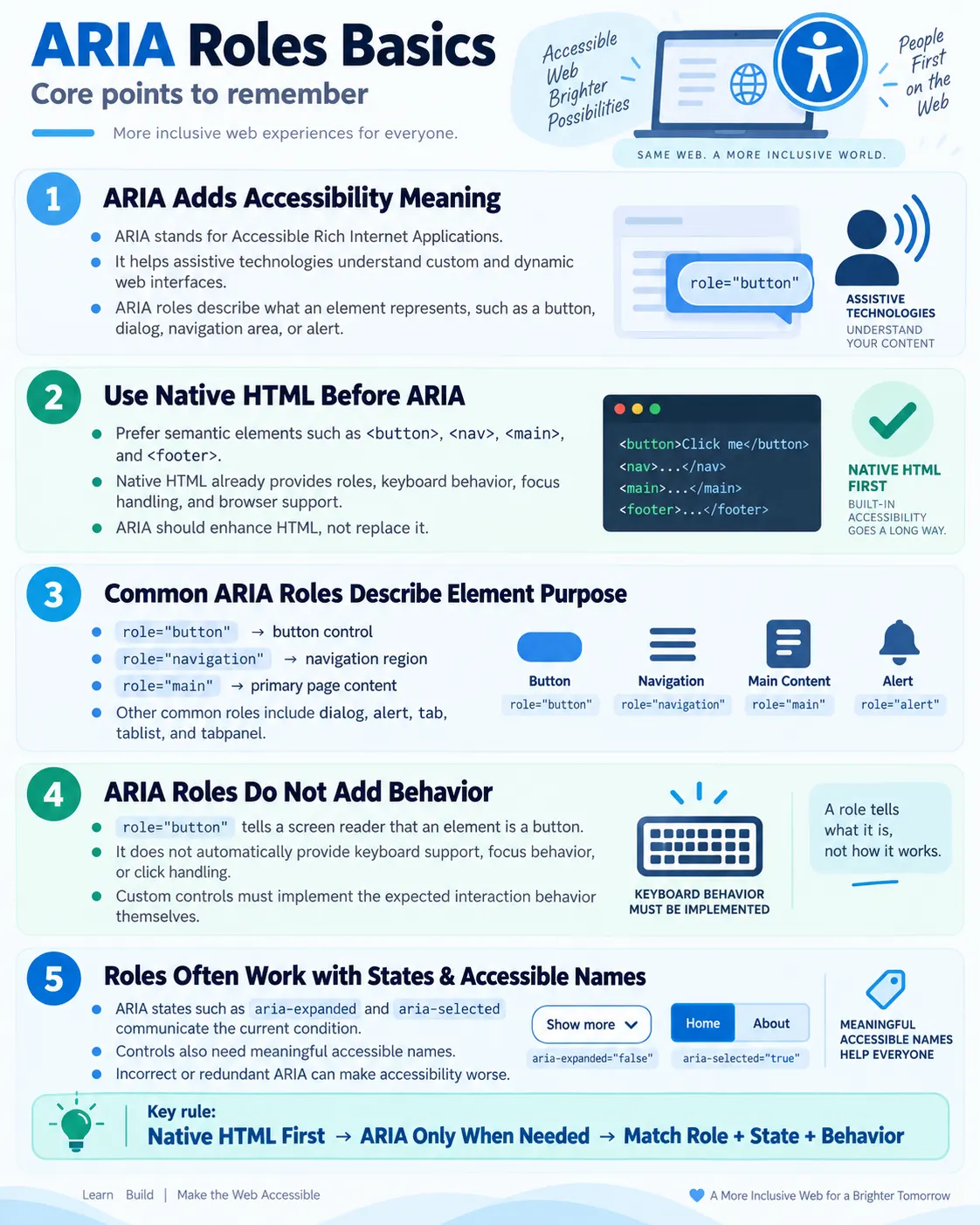
ARIA, which stands for Accessible Rich Internet Applications, is a set of attributes that improves the accessibility of web applications for people using screen readers and other assistive technologies. ARIA helps browsers expose extra meaning to assistive technologies when native HTML alone does not fully describe a custom interface. Modern web applications often include custom widgets, dynamic content, dialogs, tabs, alerts, and interactive controls. When those components are not built with native semantic HTML, assistive technologies may not understand what they are or how users should interact with them.
ARIA roles are one part of ARIA. A role defines what an element is or what purpose it serves. For example, an element can be identified as a button, navigation region, main content area, dialog, alert, tab, or tab panel. This helps a screen reader announce the element correctly. However, ARIA must be used carefully. ARIA can add meaning, but it does not automatically add visual appearance, keyboard support, focus handling, or application behavior.
The most important rule is that ARIA should enhance HTML, not replace it. Whenever possible, use native semantic HTML elements first. Browsers and assistive technologies already understand elements such as <button>, <nav>, <main>, <header>, <footer>, <input>, and <label>. Native HTML usually provides accessibility, keyboard behavior, focus behavior, and browser behavior for free. ARIA is most useful when native HTML cannot express the required component clearly enough.
What Is ARIA?
ARIA stands for Accessible Rich Internet Applications. It is a W3C specification that helps assistive technologies better understand web content and user interface components. ARIA is especially important for dynamic web applications where JavaScript creates controls or updates content after the page loads.
HTML
  |
  v
ARIA
  |
  v
Screen Reader
  |
  v
Better Accessibility
ARIA works by adding attributes to HTML elements. These attributes can describe roles, states, and properties. A role tells assistive technology what an element represents. A state tells whether something is selected, expanded, checked, disabled, or hidden. A property can provide relationships or additional information, such as which element labels another element.
ARIA does not change what sighted users see on the screen. It changes how the element is represented in the accessibility tree, which is the structure used by assistive technologies. This distinction is important. If a developer adds ARIA but does not implement the expected behavior, the element may be announced differently but still behave incorrectly.
What Is an ARIA Role?
An ARIA role tells assistive technologies what an element represents. It answers the question: "What is this element supposed to be?" The syntax is simple. The role attribute is added to an element with a role value.
<div role="navigation">
  ...
</div>
In this example, the role tells assistive technologies that the generic <div> should be interpreted as a navigation region. Without the role, the element is just a generic container. With the role, screen readers can expose it as a landmark that users may be able to jump to quickly.
Roles are useful when a generic element is used for a specific purpose. However, if a native HTML element already expresses the role, use the native element instead. For navigation, <nav> is usually better than <div role="navigation">. The native element is shorter, clearer, and already supported by browsers and assistive technologies.
Why ARIA Roles Are Needed
Modern web applications often create custom UI components using generic elements such as <div> and <span>. CSS can make those elements look like buttons, tabs, menus, dialogs, or alerts. JavaScript can make them respond to clicks. Visually, the component may look correct. But assistive technologies depend on semantic information, not only visual styling.
<div class="button">
  Save
</div>
Visually, this element may look like a button. But a screen reader may announce only "Save" because the element itself is a generic <div>. It does not know that the element is intended to be a button. Adding an ARIA role changes the accessibility meaning.
<div role="button">
  Save
</div>
Now a screen reader can announce "Button, Save." That is better, but it is still incomplete. A native button also supports keyboard focus, Enter and Space activation, disabled behavior, and expected browser behavior. A <div role="button"> does not automatically gain those behaviors. The developer must implement them. This is why ARIA roles are helpful but also easy to misuse.
HTML's Role
HTML provides structure and meaning. ARIA provides additional accessibility information when necessary. The recommended flow is to start with semantic HTML, then add ARIA only when the native element does not provide enough information.
HTML
  |
  v
Semantic Elements
  |
  v
ARIA (if needed)
  |
  v
Screen Reader
For example, a real <button> communicates that it is a button. A real <nav> communicates navigation. A real <main> communicates main content. A real <footer> communicates page footer content when used at the page level. ARIA can provide equivalent meaning to generic elements, but using native HTML is usually simpler and safer.
ARIA is most valuable when building custom components that do not have a direct native HTML equivalent, or when extra state needs to be communicated. For example, a custom tab component may need roles such as tablist, tab, and tabpanel, along with selected state and keyboard behavior. A notification may use role="alert" so important messages are announced when they appear.
Native HTML vs ARIA
The best approach is to use native HTML whenever it provides the semantics and behavior needed. A native button is the correct element for a button action.
<button>
  Save
</button>
A native <button> includes keyboard support, focus handling, screen reader support, and correct role information. It can be activated with mouse, touch, keyboard, and assistive technologies. It participates naturally in forms when appropriate.
A custom button built with a <div> requires extra work.
<div role="button" tabindex="0">
  Save
</div>
This markup gives the element a button role and makes it focusable with tabindex="0", but JavaScript is still required to handle keyboard activation with Enter and Space. The developer must also manage disabled states and other behavior if needed. For this reason, replacing native elements unnecessarily increases complexity and risk.
Common ARIA Roles
ARIA includes many roles, but beginners should first understand the most common ones. Some roles identify controls, some identify landmarks, and some identify complex widget structures.
| Role | Purpose |
|---|---|
button | Button |
navigation | Navigation area |
main | Main page content |
banner | Page header |
contentinfo | Page footer |
search | Search section |
dialog | Dialog box |
alert | Important message |
tablist | Group of tabs |
tab | Individual tab |
tabpanel | Content for a tab |
These roles should be used with understanding. A role should match the actual purpose and behavior of the element. Do not add role="button" to something that does not act like a button. Do not add role="table" to content that is not tabular data. Inaccurate roles can make assistive technology output misleading.
Example: Navigation
Navigation is one of the clearest examples of native HTML being better than ARIA on a generic element. The native <nav> element already communicates navigation.
<nav>
  ...
</nav>
Screen readers understand <nav> as a navigation landmark. A generic <div> can be given an equivalent role.
<div role="navigation">
  ...
</div>
This adds navigation meaning to a generic container, but it is usually unnecessary if the developer can use <nav>. The native element is more readable for developers and already has the correct semantic meaning.
Example: Button
A button is an action control. The correct native element is <button>.
<button>
  Submit
</button>
A poor version is a generic element with only text.
<div>
  Submit
</div>
If a native button cannot be used for some reason, the custom element needs a role and focus support.
<div role="button" tabindex="0">
  Submit
</div>
Even then, this is not enough by itself. The custom button must respond to keyboard interaction such as Enter and Space. Native buttons provide this automatically. This is why interviews often emphasize that role="button" does not make a <div> behave like a real button.
Example: Main Content
The native <main> element identifies the primary content of the page.
<main>
  ...
</main>
The equivalent ARIA role is main.
<div role="main">
  ...
</div>
Again, prefer the native element when possible. The <main> element is clear, concise, and understood by assistive technologies. It creates a landmark that users can jump to, which is useful on pages with repeated navigation, sidebars, or headers.
Example: Alert
The alert role is used for important messages that should be announced to screen reader users when they appear. It is commonly used for errors, urgent status messages, or important feedback.
<div role="alert">
  Login Failed
</div>
Many screen readers announce alert content automatically when it is added to the page. This is useful because visual users may see the message appear, but screen reader users need an accessible notification. However, alerts should be used carefully. If every small update is an alert, the page can become noisy and frustrating.
Landmark Roles
ARIA defines landmark roles that help users navigate major regions of a page. Landmark roles are especially useful for screen reader users who want to jump quickly between areas such as header, navigation, main content, search, sidebar, and footer.
| Landmark Role | Native HTML Equivalent |
|---|---|
banner | <header> at page level |
navigation | <nav> |
main | <main> |
contentinfo | <footer> at page level |
search | Search section |
complementary | <aside> |
Header
  |
  v
Navigation
  |
  v
Main
  |
  v
Footer
Landmarks create a page map. Instead of listening through the entire page, users can move directly to main content or navigation. Native semantic elements are usually the simplest way to create landmarks.
Browser Workflow
When a browser loads a page, it parses HTML and creates the DOM. ARIA roles are part of the element information. The browser then creates an accessibility tree based on the DOM, native semantics, ARIA roles, states, and properties. Screen readers use this accessibility tree to communicate the page to users.
HTML
  |
  v
ARIA Roles
  |
  v
Browser
  |
  v
Accessibility Tree
  |
  v
Screen Reader
This workflow explains both the power and risk of ARIA. ARIA can improve the accessibility tree when used correctly. It can also damage the accessibility tree when used incorrectly. A wrong role can make an element sound like something it is not. A missing state can leave users unaware that a control is expanded or selected. Good ARIA requires both correct markup and correct behavior.
Real-World Example
Consider custom navigation built with a generic container.
<div role="navigation">
  <a href="#">Home</a>
  <a href="#">Courses</a>
</div>
This can expose the container as navigation. But the better solution is to use native HTML.
<nav>
  <a href="#">Home</a>
  <a href="#">Courses</a>
</nav>
The native version is simpler, more readable, and more naturally accessible. This example captures the main lesson of ARIA roles: use native HTML first, then use ARIA when native HTML is not enough.
ARIA Does Not Change Appearance
Adding role="button" does not make an element look like a button. ARIA only affects how assistive technologies interpret the element. CSS controls appearance. JavaScript controls behavior. HTML and ARIA communicate meaning.
This separation is important. A developer may add role="button" and assume the element is now fixed. But if the element is not focusable, keyboard users may not reach it. If Enter and Space do nothing, keyboard users cannot activate it. If it has no visual focus style, users may not know where they are. ARIA provides meaning, not complete interaction.
The First Rule of ARIA
The W3C's first rule of ARIA is simple: if you can use a native HTML element or attribute with the semantics and behavior you need, use it instead of adding ARIA. This rule exists because native HTML is usually more reliable than custom ARIA patterns.
<button>
  Save
</button>
This is preferred over:
<div role="button">
  Save
</div>
Native HTML is not only shorter. It carries built-in behavior. ARIA can describe what an element is, but it does not automatically create all the behavior users expect. The first rule helps developers avoid unnecessary complexity.
Common Mistakes
A common mistake is replacing native HTML with ARIA. For example, using <div role="heading"> instead of a real heading is usually unnecessary.
<div role="heading">
  Title
</div>
A better version is:
<h1>
  Title
</h1>
Another mistake is adding redundant ARIA. For example, adding role="navigation" to a <nav> element is usually unnecessary because <nav> already has navigation semantics.
<nav role="navigation">
  ...
</nav>
Forgetting keyboard support is another serious issue. Adding role="button" does not automatically provide keyboard navigation, focus, or click behavior. Developers must implement those behaviors when creating custom controls. Incorrect roles are also harmful. Do not assign roles that do not match the element's purpose, such as role="table" for content that is not actually a table.
ARIA Roles and States
Roles often work together with ARIA states and properties. A role says what an element is. A state says something about its current condition. For example, a custom disclosure button may use a button role and aria-expanded to indicate whether related content is open.
<button aria-expanded="false">
  Menu
</button>
When the menu opens, JavaScript should update the value to true. This lets screen reader users understand the current state. Similarly, tabs may use aria-selected, dialogs may use accessible labeling, and live regions may announce updates.
Roles without correct states can be incomplete. A tab interface that says elements are tabs but does not communicate which tab is selected may confuse users. ARIA should describe both structure and current state when state matters.
ARIA and Keyboard Behavior
ARIA roles often imply expected keyboard behavior. A button should activate with Enter and Space. Tabs usually use arrow keys to move between tabs. Dialogs should trap focus while open and allow closing through expected controls. Menus and listboxes have their own interaction patterns.
Adding a role does not implement those keyboard patterns. Developers must write the behavior or use an accessible component that already implements it. This is one of the most common ARIA mistakes. The accessibility tree may say "button," but if keyboard users cannot activate it, the component is still inaccessible.
For beginners, this is another reason to prefer native HTML. Native elements already have well-known keyboard behavior. Custom ARIA widgets should be built only when the team understands the expected interaction pattern and can test it properly.
Selenium Perspective
Automation testers commonly verify correct ARIA roles, landmark navigation, accessible dialogs, alerts, custom controls, and keyboard accessibility. Selenium can locate elements by role, read the role attribute, and confirm that expected ARIA values are present.
WebElement button = driver.findElement(
    By.cssSelector("[role='button']")
);

String role = button.getAttribute("role");

System.out.println(role);
Testing should not stop at checking whether the attribute exists. A custom element with role="button" should also be focusable and keyboard-operable. A dialog role should also have proper focus handling and labeling. An alert should appear at the right time and communicate important content without becoming noisy.
Accessibility testing tools such as Axe can validate many ARIA usage problems. They can identify invalid roles, missing required attributes, incorrect ARIA relationships, and other issues. Selenium can drive the page into different states before running accessibility checks.
Testing Checklist
When reviewing ARIA roles, first ask whether ARIA is needed at all. If a native HTML element can provide the same semantics and behavior, use the native element. Next, check whether the role matches the element's real purpose. A role should not be used only to satisfy a tool or imitate a visual design.
Check whether keyboard support matches the role. If an element has role="button", it should be reachable by keyboard and activate with expected keys. If an element has dialog behavior, focus should be managed correctly. If tabs are used, selected state and keyboard interaction should be tested.
Also check whether ARIA states and labels are complete. Roles often need accessible names or related attributes. A dialog should have a clear label. Tabs need selected state. Expandable controls need expanded state. ARIA should help users understand both what the control is and what state it is currently in.
Best Practices
Use native semantic HTML first. Add ARIA only when it improves accessibility and when native HTML cannot express the required meaning. Do not add redundant roles to elements that already have the correct semantics. Do not use roles that conflict with the element's behavior.
When building custom controls, implement keyboard support, focus management, visual focus indicators, accessible names, and correct states. Test with keyboard navigation and accessibility tools. For important components, test with a screen reader as well.
Keep ARIA simple. More ARIA is not automatically better. Correct ARIA is useful. Incorrect ARIA can be worse than no ARIA because it gives assistive technologies false information. Treat ARIA as a precision tool, not a shortcut.
Accessible Names with ARIA Roles
A role tells assistive technologies what an element is, but users also need to know what the element is called. This is the accessible name. A button with the role button still needs a useful name such as Save, Submit, Close, or Add to Cart. Without a name, a screen reader may announce only "button," which is not enough for the user to understand the action.
Native HTML often creates accessible names automatically from visible text. For example, the text inside a <button> becomes the button's accessible name. Custom elements may need explicit naming through visible text, aria-label, or aria-labelledby. The correct choice depends on the design. Visible text is usually best because it helps all users. ARIA labels are useful for icon-only controls when visible text is not present.
Accessible names should be specific. A dialog close button named "Close" is acceptable when the context is clear. A page with several similar buttons may need more specific names, such as "Remove HTML course" or "Edit billing address." Good names help screen reader users navigate and act with confidence.
Role Conflicts
ARIA can create problems when a role conflicts with the native meaning of an element. For example, applying a button role to a heading or a table role to a paragraph can make the accessibility tree misleading. Assistive technologies may announce something that does not match the actual structure or behavior.
Developers should avoid using ARIA to force an element into a role that does not match its purpose. If the content is a heading, use a heading. If it is a table, use table markup. If it is a button, use a button. ARIA should clarify meaning, not disguise poor markup.
Role conflicts are especially risky in shared components. A small incorrect role in a component library can spread to many pages. This is why ARIA usage should be reviewed carefully during component development and not added casually to satisfy a warning or imitate a visual pattern.
ARIA Roles for Dialogs
Dialogs are common in modern web applications. They may appear for confirmations, forms, alerts, settings, login prompts, or detailed information. A dialog role can tell assistive technologies that a section of content is a dialog.
<div role="dialog" aria-labelledby="dialog-title">
  <h2 id="dialog-title">Delete Item</h2>
  <p>Are you sure you want to delete this item?</p>
</div>
The role is only one part of an accessible dialog. The dialog also needs an accessible name, usually through aria-labelledby. When the dialog opens, focus should move into it. While it is open, keyboard focus should usually remain inside it. When it closes, focus should return to the control that opened it. Users should have a clear way to close the dialog.
This is a good example of ARIA's limits. role="dialog" tells assistive technologies what the element represents, but it does not implement focus management, keyboard trapping, closing behavior, or visual styling. Those must be handled by the component code.
ARIA Roles for Tabs
Tabs are another example where ARIA can be useful for custom widgets. A tab interface often uses tablist, tab, and tabpanel. These roles explain the relationship between the tab controls and the content panels.
<div role="tablist">
  <button role="tab" aria-selected="true">Overview</button>
  <button role="tab" aria-selected="false">Details</button>
</div>

<div role="tabpanel">
  Overview content
</div>
Accessible tabs require more than roles. The selected tab should be communicated with aria-selected. Keyboard behavior should allow users to move between tabs using expected keys. The active tab should be connected to its panel. The panel should be reachable and understandable.
Because tab patterns can be complex, teams should avoid inventing them casually. Use native patterns where possible or rely on tested accessible components. If custom tabs are built, they should be tested with keyboard navigation and screen readers.
ARIA Roles and Design Systems
Design systems are a critical place to handle ARIA correctly. If a design system provides a button, dialog, alert, navigation, tab, accordion, or menu component, it should define the correct HTML, ARIA roles, states, keyboard behavior, and focus behavior. Product teams should not need to rebuild accessibility from scratch every time they use a common component.
A design system button should usually be a native <button>. A link component should be a real link when it navigates. A dialog component should include role, labeling, focus management, and closing behavior. An alert component should use the correct announcement pattern only when the message is important enough to interrupt or notify assistive technology users.
When a design system gets ARIA right, accessibility becomes easier across the organization. When it gets ARIA wrong, the same mistake spreads widely. This makes ARIA review an important part of shared component governance.
ARIA and Progressive Enhancement
ARIA should support progressive enhancement. A page should start with meaningful HTML and then add richer behavior where necessary. If JavaScript fails, the page should still preserve as much meaning and usability as possible. ARIA should not be used as a thin layer over a completely inaccessible interaction model.
For example, a disclosure component can start with a real button and nearby content. JavaScript can enhance it by toggling visibility and updating aria-expanded. The base HTML provides structure, and ARIA communicates the dynamic state. This is stronger than building the entire component from generic containers and then trying to reconstruct all semantics manually.
This approach keeps the page resilient. Assistive technologies, browsers, and users benefit from native behavior first. ARIA then adds the missing details required by richer interaction.
Debugging ARIA Issues
Debugging ARIA requires checking what assistive technologies actually receive, not only what appears in the HTML source. Browser developer tools often include accessibility inspection panels that show computed roles, accessible names, states, and relationships. These tools help developers see whether the accessibility tree matches the intended design.
If a screen reader announces the wrong thing, inspect the computed role and name. The issue may be missing visible text, an incorrect aria-label, a duplicate ID used by aria-labelledby, or a role that overrides native semantics. If a state is wrong, check whether JavaScript updates the ARIA attribute when the UI changes.
Debugging should also include keyboard testing. If the role says button but keyboard activation fails, the role is only partially implemented. If a dialog role exists but focus remains behind the dialog, users may be confused. ARIA debugging is about both meaning and behavior.
Practical Decision Checklist
Before adding an ARIA role, ask whether a native HTML element can solve the problem. If yes, use the native element. If not, ask whether the custom element will fully implement the behavior expected for that role. A role without matching behavior is misleading.
Ask whether the element has a useful accessible name. Ask whether it needs a state such as expanded, selected, checked, disabled, or pressed. Ask whether it participates in a relationship with another element. Ask whether keyboard users can reach and operate it. Ask whether focus order and focus management make sense.
Finally, test the result. Use browser accessibility inspection, keyboard navigation, automated accessibility tools, and screen reader checks where appropriate. ARIA should be verified, not assumed.
ARIA in Real Project Reviews
In real project reviews, ARIA issues often appear in custom components. A team may build a styled dropdown, modal, tab group, accordion, toast message, or custom checkbox. The component may look correct in screenshots and may work with mouse clicks, but still fail for keyboard and screen reader users. Reviewers should therefore evaluate both the code and the interaction.
A useful review begins by identifying the component's real purpose. Is it a button, link, menu, dialog, tab, alert, or something else? Then check whether native HTML can provide that purpose. If native HTML cannot fully support the custom behavior, review the ARIA role, accessible name, state attributes, relationships, keyboard pattern, focus behavior, and screen reader output.
For example, a custom dropdown may need to expose whether it is expanded, which option is selected, and how users can move between options. A modal dialog may need a dialog role, a clear label, focus movement into the dialog, keyboard closing, and focus return after closing. An alert message may need to be announced at the correct time without interrupting users unnecessarily.
Project reviews should also look for unnecessary ARIA. If a developer writes <button role="button">, the role adds no value because the button already has that role. If a developer writes <nav role="navigation">, the role is usually redundant. Redundant ARIA may not always break accessibility, but it adds noise and can signal that the team is adding ARIA mechanically instead of intentionally.
The best ARIA review question is practical: does this markup help assistive technology users understand and operate the component correctly? If the answer is yes, the ARIA is useful. If the answer is no, unclear, or based only on visual appearance, the component needs more work.
What ARIA Cannot Fix
ARIA is powerful, but it cannot fix every accessibility problem. It cannot fix poor visual contrast, confusing content, missing keyboard logic, broken focus order, unclear error messages, or a workflow that does not make sense. It also cannot make an inaccessible design accessible if the interaction itself excludes users.
For example, adding role="button" to a generic element does not create a visible focus indicator. Adding role="dialog" does not stop users from tabbing behind the dialog. Adding role="alert" does not make a vague message helpful. Adding role="navigation" does not improve link text such as "click here."
This is why ARIA should be seen as one part of accessibility, not the entire solution. Good accessibility starts with semantic HTML, clear content, usable design, keyboard support, and predictable interaction. ARIA adds the extra information needed for custom or dynamic experiences. Used correctly, it improves accessibility. Used as a patch for poor structure, it often creates new problems.
Comparison Table
| Native HTML | ARIA Role |
|---|---|
<button> | role="button" for custom controls only |
<nav> | role="navigation" |
<main> | role="main" |
<header> at page level | role="banner" |
<footer> at page level | role="contentinfo" |
<aside> | role="complementary" |
Common Interview Questions
What is ARIA? ARIA, or Accessible Rich Internet Applications, is a specification that improves accessibility by providing additional information to assistive technologies.
What is an ARIA role? An ARIA role identifies the purpose of an element, helping assistive technologies understand how it should be interpreted.
Should ARIA replace semantic HTML? No. Use native semantic HTML whenever possible. ARIA should only supplement HTML when needed.
Does role="button" make a <div> behave like a button? No. It tells assistive technologies that the element is a button, but developers must still implement keyboard interaction and behavior.
What are landmark roles? Landmark roles identify major regions of a page, such as navigation, main content, and footer, allowing assistive technologies to navigate quickly.
Interview-Ready Answer
ARIA roles are accessibility attributes that define the purpose of HTML elements for assistive technologies such as screen readers. They are especially useful when creating custom UI components with generic elements like <div> or <span>. Common roles include button, navigation, main, banner, contentinfo, and dialog. However, developers should always prefer native semantic HTML elements because they already provide built-in accessibility, keyboard support, and browser behavior. ARIA should enhance HTML, not replace it.
One-Line Insight
ARIA roles give assistive technologies extra meaning, but native semantic HTML should always be your first choice.