Anchor Tag (<a>) Deep Dive
Introduction
The anchor element, written as <a>, is one of the most important elements in HTML. It creates hyperlinks, and hyperlinks are the foundation of the Web. Without links, webpages would remain isolated documents. With links, a user can move from one page to another, jump to sections inside a page, open resources on other websites, send emails, call phone numbers, and download files. The connected nature of websites, documentation, search results, blogs, courses, and applications depends heavily on the anchor tag.
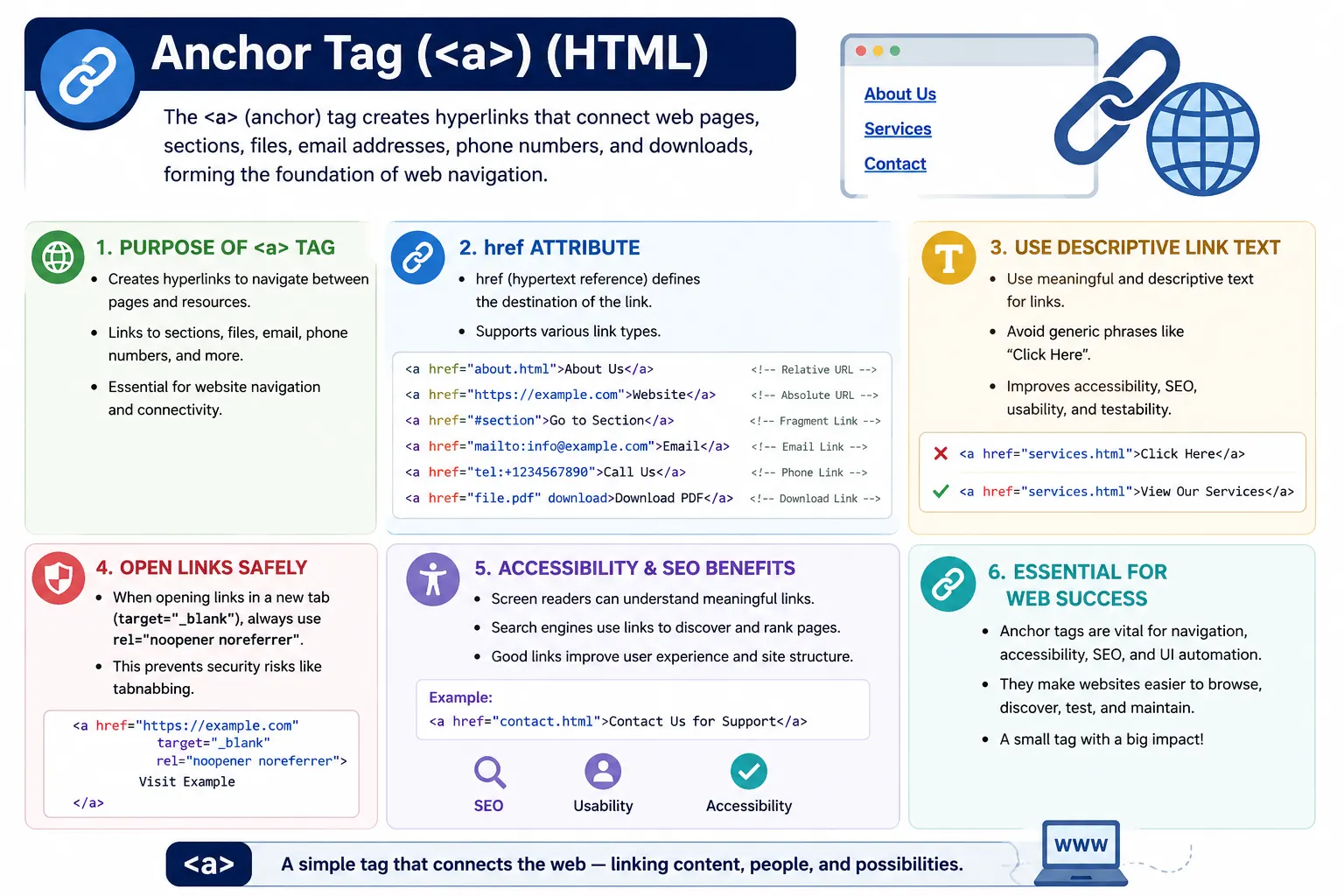
At first, the anchor tag looks simple. A developer writes a destination inside the href attribute and places readable link text between the opening and closing tags. But the element is deeper than that. A professional developer must understand different URL types, internal and external navigation, fragment links, email and phone links, download behavior, security concerns with new tabs, accessibility requirements, SEO impact, and how automated tests validate links.
The anchor tag is not only a visual clickable text. It is a semantic navigation element. It tells the browser that the content connects to another resource. It tells users where they can go next. It helps search engines understand relationships between pages. It gives assistive technologies meaningful navigation points. Because of this, learning the anchor element properly is essential for anyone building HTML pages, websites, documentation, or web applications.
What Is an Anchor Tag?
The <a> element creates a clickable hyperlink. The most common form uses the href attribute, which specifies the destination address. The text placed inside the element becomes the clickable text shown to the user.
<a href="https://www.google.com">
  Visit Google
</a>
In the browser, the text Visit Google appears as a clickable link. When the user clicks it, the browser navigates to the URL provided in the href attribute. By default, most browsers display links with blue text and underline styling, although this can be changed using CSS.
A link can point to a full website URL, a local page, a section inside the same page, a file, an email address, a phone number, or another valid resource. This flexibility makes the anchor element useful in almost every type of webpage.
Why Is It Called an Anchor?
The word anchor comes from the idea of connecting one location to another. Historically, anchors could mark a location in a document and link to that location. Today, the same concept remains. A link connects the current location to a target location. That target may be another webpage, another section, another file, or another service.
Current Location
       ↓
Target Location
In this sense, an anchor creates a relationship between where the user is now and where the user can go next. This simple idea is what turns individual documents into an interconnected web of information.
Basic Syntax
The basic syntax of an anchor tag includes the <a> element, an href attribute, and link text.
<a href="URL">
  Link Text
</a>
A typical internal page link might look like this:
<a href="about.html">
  About Us
</a>
The browser displays About Us as the clickable text. When the user clicks it, the browser attempts to open the page about.html. If that file exists at the expected location, it loads. If the file path is wrong, the user may see a 404 error or broken navigation.
Anatomy of an Anchor Tag
A simple anchor tag contains multiple parts, and each part has a purpose.
<a href="contact.html">
  Contact Us
</a>
The <a> part is the anchor element itself. The href part is the hypertext reference attribute. The value contact.html is the destination URL or path. The text Contact Us is the clickable link text shown to users. Together, these pieces create a complete hyperlink.
Good link text matters. The user should understand the destination before clicking. A link that says Contact Us is much clearer than a link that says Click Here. Clear link text improves usability, accessibility, SEO, and testing reliability.
The href Attribute
The href attribute is the most important attribute of the anchor tag. It specifies the destination address. Without href, an anchor may still exist in the DOM, but it is not a normal functional hyperlink.
<a href="https://softwaretips4u.com">
  SoftwareTips4U
</a>
In this example, href points to the SoftwareTips4U website. When the link is clicked, the browser reads the value of href, sends a request if needed, receives a response, and renders the target page or resource.
User Clicks Link
        ↓
Read href Value
        ↓
Send HTTP Request
        ↓
Receive Response
        ↓
Render New Page
This process happens quickly, but it is useful to understand what the browser is doing. The link is not just a visual element. It is an instruction that tells the browser where to navigate.
Types of Hyperlinks
HTML supports several types of links. The most common categories are external links, internal links, relative links, absolute links, email links, phone links, download links, image links, and fragment links. All of these are created with the same anchor element, but the href value changes based on the purpose.
External Links
An external link navigates to another website. It usually uses a full URL with a protocol such as https://.
<a href="https://www.google.com">
  Google
</a>
External links are common in articles, documentation, references, citations, partner pages, and resource lists. When linking externally, use clear text that tells users where they are going.
Internal Links
An internal link navigates within the same website. It may point to another page in the same folder or a different folder.
<a href="courses.html">
  Courses
</a>
Internal links create the structure of a website. Navigation menus, breadcrumbs, footer links, related articles, course indexes, and next/previous lesson links all depend on internal anchors.
Relative Links
A relative link uses a path relative to the current page. If the current page is https://softwaretips4u.com/index.html, a link to about.html points to https://softwaretips4u.com/about.html.
<a href="about.html">
  About
</a>
Relative links are shorter and easier to maintain inside the same website. If the domain changes, relative links often continue to work because they do not hardcode the full domain name.
Absolute Links
An absolute link provides the full URL. It includes the protocol, domain, and path.
<a href="https://softwaretips4u.com/about.html">
  About
</a>
Absolute links work from anywhere because the complete destination is provided. They are commonly used for external websites, canonical references, emails, sitemaps, and places where the full destination must be explicit.
Relative vs Absolute URLs
Relative and absolute URLs both have valid uses. Relative URLs are concise and easier to maintain for internal links. Absolute URLs are explicit and work independently of the current page location. A good developer chooses based on context rather than using one style everywhere.
| URL Type | Example | Common Advantage |
|---|---|---|
| Relative | about.html | Shorter and easier for internal pages |
| Absolute | https://softwaretips4u.com/about.html | Works from anywhere |
Opening Links in New Tabs
The target attribute controls where a link opens. The value _blank opens the destination in a new tab or new window, depending on browser behavior.
<a href="https://google.com"
   target="_blank">
  Google
</a>
Opening links in a new tab can be useful for external references, documents, or resources where the user should not lose their current page. However, it should not be overused. Users often expect normal links to open in the same tab unless there is a clear reason otherwise.
| Target Value | Description |
|---|---|
_self | Open in the current tab; default behavior |
_blank | Open in a new tab or window |
_parent | Open in the parent frame |
_top | Open in the full window |
Security Best Practice for New Tabs
When using target="_blank", it is best practice to also use rel="noopener noreferrer". This helps prevent security and privacy issues related to the newly opened page having access to the original page through the browser's window relationship.
<a href="https://google.com"
   target="_blank"
   rel="noopener noreferrer">
  Google
</a>
This is especially important for external links. It is a small addition, but it reflects professional HTML practice.
Email Links
An email link uses the mailto: scheme. When clicked, it opens the user's default email application, if one is configured.
<a href="mailto:info@softwaretips4u.com">
  Email Us
</a>
Email links are useful on contact pages, footers, support sections, and profile pages. They should still use descriptive text. Email Us is clearer than Click Here.
Phone Links
A phone link uses the tel: scheme. It is especially useful on mobile devices because tapping the link can open the phone dialer.
<a href="tel:+1234567890">
  Call Us
</a>
Phone links are common on business websites, support pages, healthcare websites, restaurants, service providers, and mobile-focused pages.
Download Links
Links can point to files such as PDFs, images, spreadsheets, ZIP files, or documents. A normal file link may open the file in the browser or download it depending on browser settings and file type.
<a href="html-guide.pdf">
  Download PDF
</a>
The download attribute suggests that the browser should download the linked file instead of navigating to it.
<a href="html-guide.pdf" download>
  Download Guide
</a>
This is useful for guides, reports, invoices, templates, and offline resources. The exact behavior can still depend on browser rules, server headers, and cross-origin restrictions.
Image Links
An image can be placed inside an anchor tag, making the image clickable. This is common for logos, banners, thumbnails, cards, and gallery items.
<a href="home.html">
  <img src="logo.png" alt="Logo">
</a>
The alt text is important because it describes the image for users who cannot see it. If the image is the only content inside the link, the alt text effectively becomes the accessible link text. A logo linking to home should have meaningful alt text such as SoftwareTips4U Home rather than a vague word like Logo.
Empty Links and Placeholder Links
Developers sometimes use href="#" as a temporary placeholder.
<a href="#">
  Placeholder Link
</a>
This may be useful during early development, but it is not recommended for production if the link does not actually navigate. Placeholder links can confuse users, create unexpected page jumps, and cause accessibility problems. If an element performs an action instead of navigation, a <button> may be more appropriate.
Linking to Sections Within a Page
Links can jump to specific sections inside the same page. These are called fragment links, jump links, or anchor links. First, create a target element with an id.
<h2 id="contact">
  Contact Us
</h2>
Then link to that ID by using # followed by the ID value.
<a href="#contact">
  Go To Contact Section
</a>
When clicked, the browser scrolls to the element with id="contact". This is useful for tables of contents, FAQ pages, long tutorials, documentation, privacy policies, and landing pages.
<a href="#footer">
  Jump To Footer
</a>

...

<footer id="footer">
  Copyright
</footer>
Link States
Browsers support different link states. These states can be styled with CSS pseudo-classes. Common states include unvisited links, visited links, hovered links, active links, and focused links. Focus styles are especially important for keyboard users because they show which link is currently selected.
a:hover {
  text-decoration: underline;
}

a:focus {
  outline: 2px solid currentColor;
}
Never remove focus outlines without providing an accessible replacement. Keyboard users need a visible indicator to navigate links confidently.
Accessibility Considerations
Accessible links use descriptive text. The link text should make sense when read by itself because screen reader users may navigate through a list of links without hearing the surrounding paragraph.
<a href="html-course.html">
  HTML Course
</a>
A screen reader can announce: Link HTML Course. This gives useful context. A poor link uses vague text.
<a href="html-course.html">
  Click Here
</a>
Click Here does not explain the destination. It forces the user to rely on surrounding text. Descriptive links are better for accessibility, usability, SEO, and automation.
SEO Impact of Links
Search engines use links to discover pages and understand relationships between content. Anchor text helps describe the destination page. A link that says HTML Tutorial gives clearer context than a link that says Read More.
<a href="html-tutorial.html">
  HTML Tutorial
</a>
This link tells both users and search engines that the destination is about an HTML tutorial. Meaningful internal linking also helps distribute navigation value across a website and makes content easier to discover.
Anchor Tag and DOM
When the browser parses an anchor tag, it creates an anchor element node in the DOM. The href attribute becomes part of that element, and the link text becomes a child text node.
<a href="about.html">
  About
</a>
a
├── href="about.html"
└── Text: AboutThis DOM structure is important for JavaScript, CSS, browser navigation, accessibility tools, and automated tests. JavaScript can read or modify link attributes, CSS can style links based on states, and Selenium can locate anchors by tag name, link text, attributes, or CSS selectors.
Real-World Navigation Menu
A navigation menu is one of the most common real-world uses of anchor tags. The links are usually placed inside a <nav> element to identify the section as navigation.
<nav>
  <a href="index.html">Home</a>
  <a href="courses.html">Courses</a>
  <a href="contact.html">Contact</a>
</nav>
This structure is clear for users, search engines, screen readers, and developers. The <nav> element identifies the navigation region, and the anchor tags provide the actual destinations.
Common Mistakes
A common mistake is omitting the href attribute.
<a>
  Home
</a>
This is not a normal functional hyperlink. If the element should navigate, provide a valid href. If it should trigger an action, consider using a button.
Another common mistake is using Click Here everywhere.
<a href="course.html">
  Click Here
</a>
This is poor for accessibility and SEO. The link text should describe the destination, such as View HTML Course or Download Course PDF.
Broken relative paths are also common. For example, cours.html will fail if the actual file is course.html. A small spelling mistake can break navigation. Another mistake is opening too many links in new tabs. Use target="_blank" only when it helps the user.
Selenium Perspective
Anchor tags are common targets in Selenium automation. Tests often validate navigation menus, footer links, buttons styled as links, downloads, email links, and broken paths. Selenium can locate links by tag name.
driver.findElement(By.tagName("a"));It can locate a link by exact link text.
driver.findElement(By.linkText("Home"));It can also locate a link by partial link text.
driver.findElement(By.partialLinkText("Course"));To validate the destination URL, Selenium can read the href attribute.
String url =
driver.findElement(By.linkText("Home")).getAttribute("href");
In real projects, tests often collect all anchor elements on a page and verify that important links are present, visible, descriptive, and pointing to the expected destinations.
Comparison Table
| Feature | Anchor Tag |
|---|---|
| Creates Hyperlinks | Yes |
| Supports External URLs | Yes |
| Supports Internal Pages | Yes |
| Supports Email Links | Yes |
| Supports Phone Links | Yes |
| Supports Downloads | Yes |
| Supports Fragment Navigation | Yes |
| SEO Friendly | Yes, when link text is meaningful |
| Accessibility Friendly | Yes, when link text is descriptive |
Common Interview Questions
A common interview question is: what is the purpose of the <a> tag? The answer is that it creates hyperlinks that connect webpages, sections, files, email addresses, phone numbers, and other resources.
Another common question is: which attribute is most important for an anchor tag? The answer is href, because it specifies the link destination. Interviewers may also ask how to open a link in a new tab. The answer is to use target="_blank", and for security, include rel="noopener noreferrer" for external links.
They may ask how to create an email link. Use href="mailto:user@example.com". For a phone link, use href="tel:+1234567890". To link to a section within the same page, use a fragment link such as href="#sectionId" and make sure the target element has a matching id.
Interview-Ready Answer
The <a> element is used to create hyperlinks that connect webpages, sections, files, email addresses, phone numbers, downloads, and other resources. Its most important attribute is href, which specifies the destination. Anchor tags are fundamental to website navigation, SEO, accessibility, browser behavior, and the interconnected nature of the World Wide Web.
Key Takeaway
The anchor tag is simple in syntax but powerful in impact. It is responsible for navigation across the Web. A good anchor element has a valid destination, clear link text, appropriate target behavior, safe security attributes when opening new tabs, and meaningful structure for accessibility and SEO.
Use links for navigation. Use buttons for actions. Use descriptive text instead of vague phrases. Use relative paths for maintainable internal links and absolute URLs when a full destination is required. When the anchor tag is used properly, the page becomes easier to navigate, easier to understand, easier to test, and more connected to the rest of the Web.
One-Line Insight
The anchor tag is the element that turns individual web pages into the interconnected Web.