Anchor IDs & Page Navigation
Introduction
Anchor IDs enable users to jump directly to specific sections of a webpage without loading a new page. This technique is commonly called anchor navigation, page navigation, fragment navigation, jump links, or in-page navigation. It is widely used in tables of contents, documentation websites, FAQs, long tutorials, single-page websites, landing pages, privacy policies, and online books.
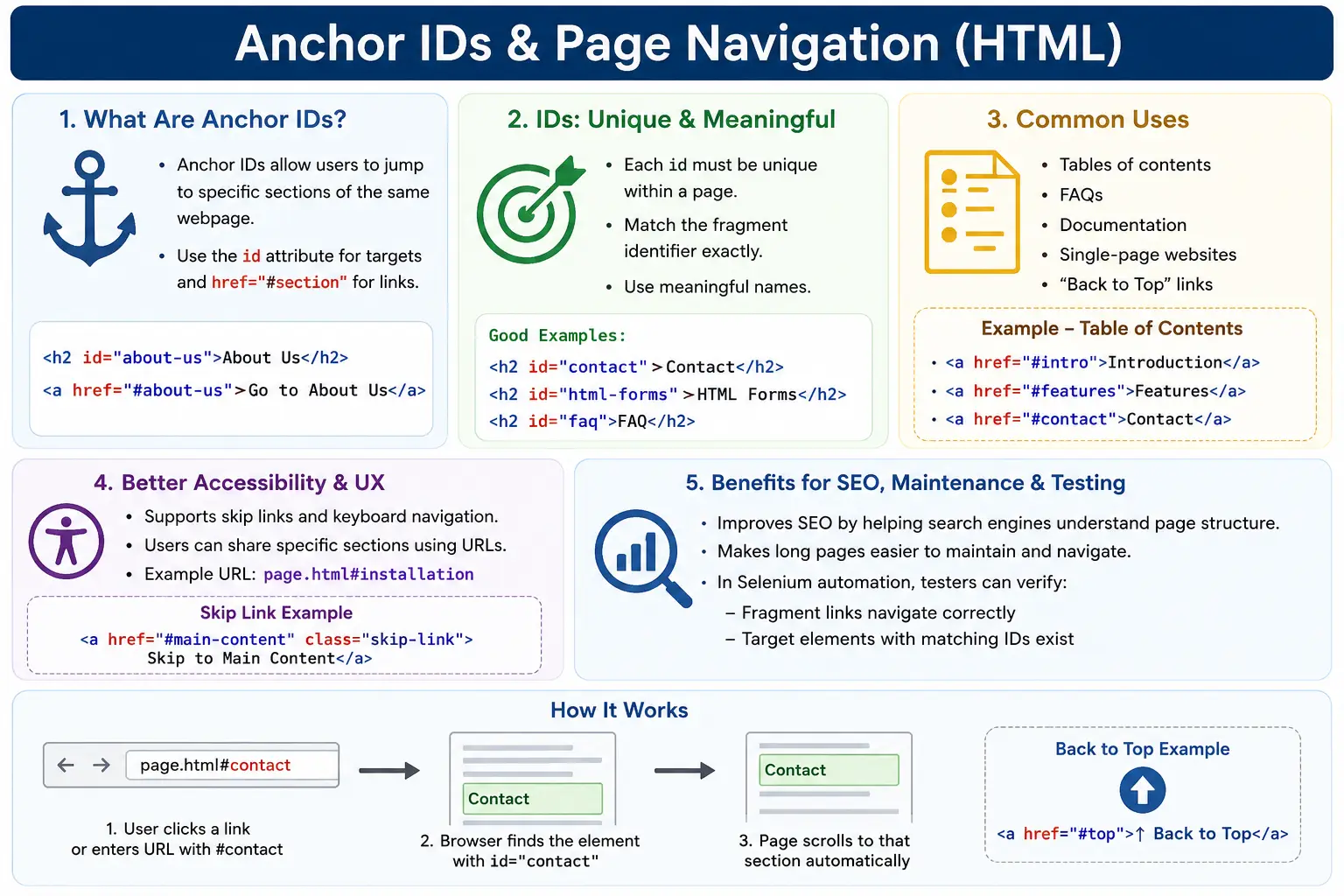
When a page is short, users can usually scroll through it without difficulty. But long pages need structure. A tutorial may contain many topics. A documentation page may contain installation, configuration, deployment, troubleshooting, and reference sections. A FAQ page may contain dozens of questions. Without in-page navigation, users must scroll manually and search visually. Anchor IDs solve this by letting users click a link and move directly to the desired section.
Anchor navigation is built using two simple pieces: an element with an id attribute and an anchor link that points to that ID using the # symbol. Although the concept is simple, it has important details. IDs must be unique, URL fragments must match the target ID, naming should be meaningful, and accessibility should be considered. When used well, anchor IDs turn long webpages into navigable documents.
What Is Anchor Navigation?
Anchor navigation allows a link to point to a specific element within a page. Instead of moving from Page A to Page B, the user moves from one location on Page A to another section inside Page A. The browser does not need to load a new document in the usual same-page case. It simply scrolls to the matching element.
Page A → Section Inside Page AThis behavior is useful because it respects the user's current context. The user remains on the same page but lands directly on the relevant content. This is why anchor navigation is common in long-form educational pages and technical documentation.
How Anchor Navigation Works
Anchor navigation uses two things. The first is an element ID. The id attribute creates a unique identifier on an HTML element. That element becomes a possible navigation target.
<h2 id="contact">
  Contact Us
</h2>
The second piece is an anchor link that points to the ID. The link uses href="#contact", where the value after the # matches the target ID.
<a href="#contact">
  Go To Contact Section
</a>
When the user clicks the link, the browser looks for an element with id="contact". If it finds one, it scrolls the page to that element. This gives the user a direct jump to the Contact Us section.
Understanding the ID Attribute
The id attribute creates a unique identifier for an element. Any element that can receive an ID can become a navigation target, including headings, sections, articles, forms, and even the body element.
<h1 id="home">
  Home
</h1>
In this example, the value home becomes a target. A link with href="#home" can navigate directly to that heading.
Rules for IDs
The most important rule is that IDs should be unique within a page. If two elements use the same ID, the document becomes invalid and browser behavior can become unpredictable. A browser may scroll to the first matching element, but developers should not rely on duplicate IDs.
<h1 id="home">Home</h1>
<h2 id="about">About</h2>
This is good because each ID is unique. The following is bad because both elements use the same ID.
<h1 id="section">Home</h1>
<h2 id="section">About</h2>
ID values also should not contain spaces. Use hyphens, camelCase, or another consistent naming convention instead.
<!-- Bad -->
<h2 id="contact us">Contact Us</h2>

<!-- Good -->
<h2 id="contact-us">Contact Us</h2>

<!-- Also acceptable -->
<h2 id="contactUs">Contact Us</h2>
Basic Example
A common page navigation pattern is a Back To Top link. First, define a target near the top of the page.
<h1 id="top">
  HTML Tutorial
</h1>
Later in the document, link back to that ID.
<a href="#top">
  Back To Top
</a>
When the user clicks Back To Top, the browser scrolls to the heading with id="top". Some pages place the ID on the <body> element instead, but using a clear heading target is often easier to understand.
Page Navigation Flow
The browser follows a simple process during anchor navigation. The user clicks the link. The browser reads the href value. If the value starts with #, the browser treats it as a fragment identifier. It then searches the current document for a matching ID and scrolls to that element.
User Clicks Link
       ↓
Browser Reads href
       ↓
Find Matching ID
       ↓
Scroll To Element
If no matching ID exists, the navigation fails or does nothing useful. This is why link values and ID values must match exactly.
Simple Example
A very small example can demonstrate the complete pattern. The link appears first, and the target section appears later on the page.
<a href="#courses">
  Go To Courses
</a>

<br><br><br><br><br>

<h2 id="courses">
  Courses Section
</h2>
When the user clicks the link, the browser scrolls to the Courses Section heading. In real projects, developers should not use repeated <br> tags for layout spacing, but the example makes the scroll behavior easy to visualize.
Table of Contents Navigation
The most common real-world use of anchor IDs is a table of contents. A long tutorial can show a list of section links at the top. Each link points to a heading later in the document.
<h1>HTML Tutorial</h1>

<ul>
  <li><a href="#intro">Introduction</a></li>
  <li><a href="#forms">Forms</a></li>
  <li><a href="#tables">Tables</a></li>
</ul>

<h2 id="intro">Introduction</h2>
<h2 id="forms">Forms</h2>
<h2 id="tables">Tables</h2>
Users can jump directly to Introduction, Forms, or Tables. This saves time and makes the page feel organized. Documentation websites often generate this type of navigation automatically from heading IDs.
Visual Representation
A table of contents acts like a map of the page. The user chooses a topic, clicks it, and the browser moves to that section.
Table of Contents
│
├── Introduction
├── Forms
└── Tables

       ↓ Click

Forms Section
This pattern is especially helpful when a page contains many sections and users arrive looking for one specific answer.
Back To Top Links
Back To Top links are common in long pages. They let users quickly return to the beginning of the document after reading a lower section.
<a href="#top">
  Back To Top
</a>
The target can be placed on the body or a top heading.
<body id="top">Or:
<h1 id="top">
  HTML Tutorial
</h1>
This improves usability on pages that have long explanations, many examples, or repeated reference sections.
Multiple Section Navigation
Single-page websites often use a navigation bar that links to multiple sections on the same page. This creates a smooth experience where the user can move between Home, About, and Contact sections without loading separate pages.
<nav>
  <a href="#home">Home</a>
  <a href="#about">About</a>
  <a href="#contact">Contact</a>
</nav>

<section id="home"></section>
<section id="about"></section>
<section id="contact"></section>
This pattern is common in landing pages, portfolios, product pages, and compact business websites. The page remains one document, but navigation feels structured.
Fragment Identifier
The part after the # symbol in a URL is called a fragment identifier. In the link href="#contact", the fragment is contact. It points to an element with the matching ID.
<a href="#contact">
  Contact
</a>
If the current page URL is https://softwaretips4u.com/html.html, clicking a link to #forms changes the URL to:
https://softwaretips4u.com/html.html#formsUsually, no full page reload occurs. The browser simply updates the URL fragment and scrolls to the matching section.
Linking to a Section on Another Page
Fragment navigation can also target a section on another page. The URL includes the page path first, followed by the fragment identifier.
<a href="html.html#forms">
  HTML Forms
</a>
When clicked, the browser opens html.html and then scrolls to the element with id="forms".
<h2 id="forms">
  Forms
</h2>
This is useful when linking from a course index to a specific lesson section, from a FAQ summary to a detailed answer, or from another website to a specific heading.
Accessibility Benefits
Anchor navigation can significantly improve accessibility when used correctly. It allows users to navigate long documents quickly, and it supports important patterns such as skip links. A skip link lets keyboard and screen reader users jump directly to the main content, bypassing repeated navigation menus.
<a href="#main-content">
  Skip To Main Content
</a>
The target might be the main content region.
<main id="main-content">
  ...
</main>
This is one of the most practical accessibility uses of anchor IDs. It reduces repetitive navigation effort and gives users faster access to the content they came for.
SEO Benefits
Search engines understand fragment URLs such as /page.html#forms. Fragments generally do not create separate indexed pages, but they can help users and search engines identify specific content sections. Search results sometimes link directly to page sections when a section is clearly structured and useful.
Anchor navigation also improves user experience, and user experience matters. A well-structured long page with meaningful section IDs is easier to share, easier to reference, and easier to navigate. This is especially useful for tutorials, documentation, and reference pages.
Anchor Navigation in Documentation Sites
Documentation sites frequently rely on anchor IDs. Headings such as Installation, Configuration, Deployment, Troubleshooting, and API Reference often receive IDs automatically. A table of contents then links to those IDs.
<h2 id="installation">Installation</h2>
<h2 id="configuration">Configuration</h2>
<h2 id="deployment">Deployment</h2>
This allows users to copy a URL to a specific section and share it with others. Instead of saying "open the page and scroll halfway down," they can share a direct URL ending in #configuration.
Common Naming Conventions
Good ID names are short, descriptive, and stable. Examples include contact, about-us, html-forms, installation, and main-content. These names are meaningful and easy to understand.
<h2 id="contact">Contact</h2>
<h2 id="about-us">About Us</h2>
<h2 id="html-forms">HTML Forms</h2>
Avoid vague IDs such as section1, section2, or abc unless there is a specific reason. Meaningful IDs make the HTML easier to maintain and the URLs easier to understand.
Common Mistakes
The most common mistake is creating a link without a matching target ID.
<a href="#contact">Contact</a>If no element has id="contact", the browser cannot scroll to the intended section. Another mistake is using duplicate IDs.
<section id="services"></section>
<section id="services"></section>
Duplicate IDs should be avoided because an ID is meant to identify one unique element. Spaces in IDs are another problem. Use contact-us instead of contact us.
Case mismatches can also cause bugs. A link using href="#Contact" may not match id="contact" in all contexts. Keep casing consistent and exact.
Real-World Example
A complete page may combine a top heading, a navigation area, multiple section targets, and a Back To Top link.
<h1 id="top">
  HTML Tutorial
</h1>

<nav>
  <a href="#intro">Introduction</a>
  <a href="#forms">Forms</a>
  <a href="#tables">Tables</a>
</nav>

<h2 id="intro">Introduction</h2>
<h2 id="forms">Forms</h2>
<h2 id="tables">Tables</h2>

<a href="#top">
  Back To Top
</a>
This creates a practical structure for a long tutorial. The user can jump to sections from the top navigation and return to the top when needed.
Selenium Perspective
From a Selenium perspective, anchor navigation can be validated by checking both the link target and the existence of the target element. A test can read the link's resolved URL.
String target =
driver.findElement(By.linkText("Forms")).getAttribute("href");
The output may look like this:
https://site.com/page.html#formsThe test can then verify that the target ID exists.
driver.findElement(By.id("forms"));This is useful for testing documentation pages, long landing pages, table of contents links, skip links, and FAQ navigation.
Comparison Table
| Feature | Anchor Navigation |
|---|---|
Uses id Attribute | Yes |
Uses href="#id" | Yes |
| Reloads Page | Usually no for same-page fragments |
| Supports Long Pages | Yes |
| Supports Table of Contents | Yes |
| Accessibility Friendly | Yes, when used clearly |
| SEO Friendly | Yes, for section clarity and sharing |
Common Interview Questions
A common interview question is: what is an anchor ID? The answer is that it is a unique identifier assigned to an HTML element using the id attribute. It can be used as a navigation target.
Another common question is: how do you link to a section within the same page? Use an anchor tag with a fragment link such as <a href="#sectionId">, and make sure an element on the page has id="sectionId".
Interviewers may also ask what the # symbol represents. It represents a fragment identifier. They may ask whether you can link to a section on another page. Yes, use a URL such as page.html#sectionId. They may also ask whether multiple elements can have the same ID. The answer is no. IDs should be unique.
Interview-Ready Answer
Anchor IDs allow navigation to specific sections within a webpage using the id attribute and fragment identifiers. When a user clicks a link such as <a href="#contact">, the browser locates the element with id="contact" and scrolls directly to it. This enables efficient page navigation for long documents, tables of contents, FAQs, skip links, and documentation pages.
Key Takeaway
Anchor IDs are a simple but powerful way to make long pages easier to navigate. The pattern requires a unique target ID and a matching fragment link. If the ID is missing, duplicated, misspelled, or mismatched by case, navigation can fail or behave unpredictably.
Use meaningful IDs, keep them unique, avoid spaces, and use anchor navigation where it genuinely improves the user experience. In-page navigation is especially valuable for long tutorials, documentation, FAQs, landing pages, and accessibility skip links.
One-Line Insight
Anchor IDs turn long webpages into navigable documents by allowing users to jump directly to specific sections.