Accessible Forms
Introduction
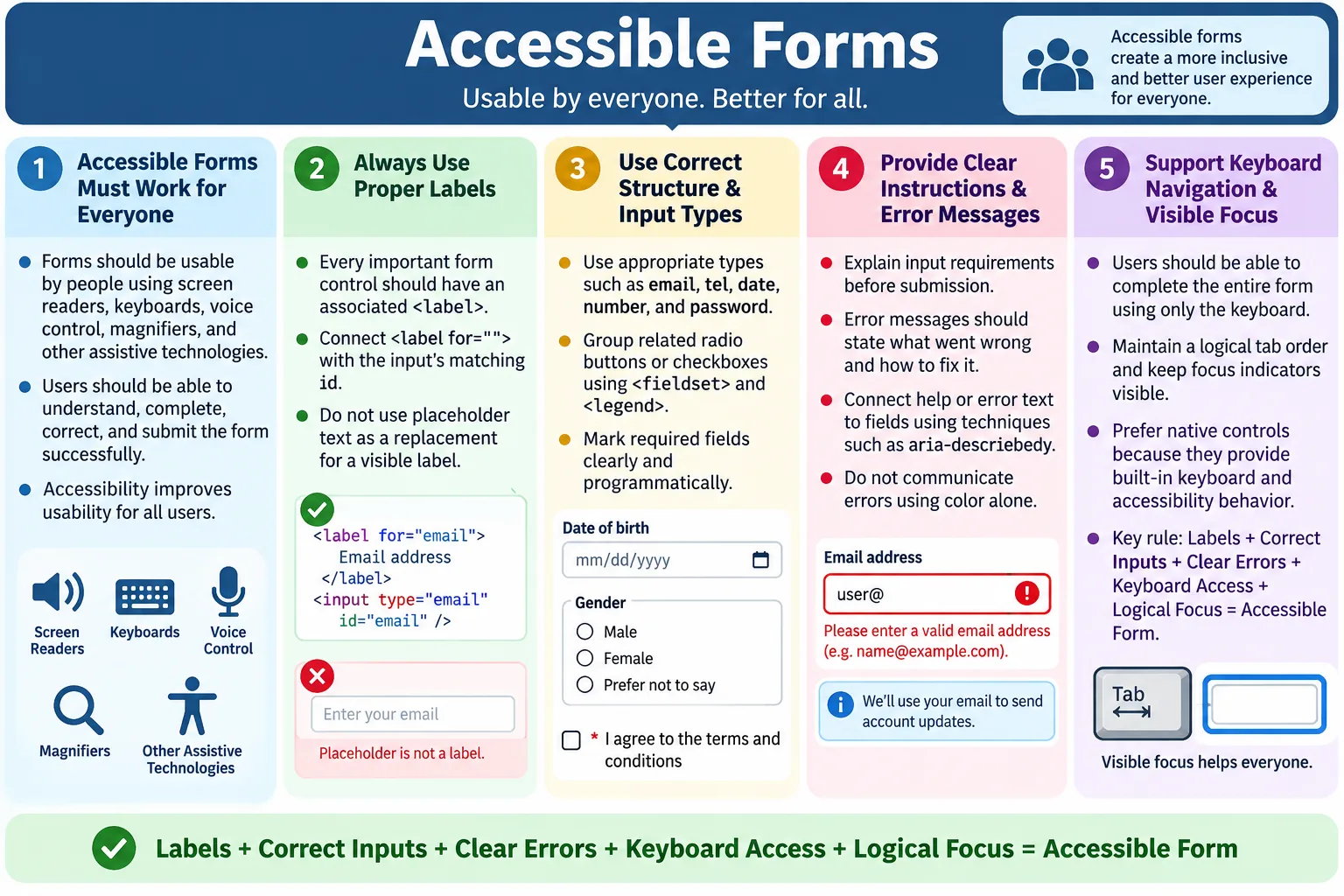
Accessible Forms are HTML forms designed so that everyone, including people using screen readers, keyboards, voice control, screen magnifiers, switch devices, and other assistive technologies, can understand, complete, and submit them successfully. Forms are among the most important interactive parts of a website because they are used to collect information, authenticate users, complete purchases, apply for services, submit requests, search content, and communicate with organizations. If a form is inaccessible, the user may not simply have a worse experience; the user may be completely blocked from completing a necessary task.
A form can look clean and modern while still being difficult or impossible for some users to use. A text field without a proper label may look obvious to a sighted user because of its position, but a screen reader user may hear only "edit text" without knowing what to enter. A button that can only be clicked with a mouse may block keyboard users. An error message that says only "Invalid input" may not tell anyone how to fix the problem. A placeholder used as the only label may disappear as soon as the user types, leaving the user without context.
Accessible forms use semantic HTML, proper labels, meaningful instructions, appropriate input types, clear validation messages, logical keyboard navigation, and visible focus indicators. These practices improve the experience for users with disabilities, but they also improve usability for everyone. A form that is easier to understand, easier to navigate, and easier to correct is better for all users, regardless of ability or device.
What Are Accessible Forms?
An accessible form is a form that can be understood by all users, completed using only a keyboard, used with screen readers, supported by clear instructions, corrected through understandable error messages, and built with proper HTML semantics. Accessibility is not one isolated feature. It is the result of the form's structure, labels, order, validation, feedback, and interaction behavior working together.
User
  |
  v
Form
  |
  v
Enter Information
  |
  v
Submit Successfully
The user should know what each field means, what information is required, what format is expected, how to move through the fields, how to submit the form, and how to fix mistakes. A screen reader user should hear useful labels and messages. A keyboard user should be able to reach every field and button. A mobile user should receive helpful keyboards and input behavior. A user with cognitive challenges should receive clear instructions and predictable feedback.
Why Accessible Forms Are Important
Forms are used for user registration, login, contact pages, shopping checkout, online banking, government services, job applications, support requests, search, profile updates, subscriptions, and many other workflows. These are not minor interactions. They are often the main reason the user visits the site.
If a login form is inaccessible, a user may not be able to access an account. If a checkout form is inaccessible, a user may not be able to buy a product. If a government service form is inaccessible, a user may not be able to apply for help or submit required information. If a job application form is inaccessible, a qualified candidate may be excluded from applying.
Accessible forms also reduce user errors and support costs. Clear labels, correct input types, helpful instructions, and meaningful errors help users complete forms faster and more accurately. This improves completion rates and lowers frustration. Accessibility and business usability often support the same goal: help users finish the task successfully.
HTML's Role
HTML provides the structure that browsers and assistive technologies understand. When HTML is written correctly, the browser can create an accessibility tree that screen readers and other assistive technologies use to communicate the form to users.
HTML Form
  |
  v
Browser
  |
  v
Accessibility Tree
  |
  v
Screen Reader
Native form elements such as <label>, <input>, <select>, <textarea>, <fieldset>, <legend>, and <button> carry built-in meaning. A correctly labeled input can be announced with its purpose. A real button can be reached and activated with the keyboard. A fieldset and legend can communicate that several radio buttons belong to the same question.
When developers replace native elements with generic <div> and <span> components, they often need to recreate accessibility behavior manually. This increases complexity and risk. Accessible forms begin with using the right HTML elements for the job.
Always Use Labels
Every form control should have an associated label. The label tells users what the field is for. It also gives the field an accessible name so screen readers can announce it correctly. Without a label, a screen reader user may not know what information is expected.
<label for="email">
  Email Address
</label>

<input id="email" type="email">
With this markup, a screen reader can announce "Email Address, edit text." The for attribute on the label matches the id of the input. This creates a clear programmatic association. It also improves mouse usability because clicking the label can focus the field.
Labels should be visible in most cases. A visible label helps users remember what the field means after they start typing. It also helps users with cognitive disabilities, users using screen magnification, and users returning to a partially completed form.
Avoid Placeholder as a Label
Placeholder text should not replace a real label. A placeholder can provide an example or hint, but it is not a reliable label. It disappears or changes when the user types. Some users may not notice it. It can have low contrast. It may not be announced consistently in all contexts. It also leaves the field without visible context after input begins.
<input type="email" placeholder="Email">A better version uses a visible label and may optionally keep a placeholder as a hint.
<label for="email">
  Email
</label>

<input
  id="email"
  type="email"
  placeholder="Enter your email">
In this version, the label identifies the field, and the placeholder provides extra guidance. The user does not lose the label after typing. This is clearer, more accessible, and easier to test.
Group Related Controls
Related controls should be grouped with <fieldset> and described with <legend>. This is especially important for radio buttons and checkboxes. Individual options may have labels, but users also need to know the question or group context.
<fieldset>
  <legend>Payment Method</legend>

  <input id="credit" name="payment" type="radio">
  <label for="credit">Credit Card</label>

  <input id="paypal" name="payment" type="radio">
  <label for="paypal">PayPal</label>
</fieldset>
Screen readers can announce the group name before the options. Without the legend, a user might hear "Credit Card, radio button" and "PayPal, radio button" but not know what question those options answer. The legend provides that missing context.
Fieldsets are also useful for grouped address fields, preference options, delivery methods, account types, and any set of controls that answer one larger question.
Use Appropriate Input Types
Choosing the correct input type improves validation, accessibility, and user experience. HTML provides input types such as email, tel, date, number, password, search, and url. These types tell the browser what kind of data is expected.
<input type="email">
<input type="tel">
<input type="date">
<input type="number">
Correct input types can trigger mobile-friendly keyboards. An email input may show the @ key more easily. A telephone input may show a numeric keypad. A date input may provide date selection support where available. Correct types also help browsers perform basic validation and assistive technologies understand the expected input.
Using type="text" for every field loses these benefits. The form may still work technically, but it gives users and browsers less help.
Identify Required Fields
Required fields should be marked programmatically and visually. The HTML required attribute tells the browser that a value is required before submission.
<input type="email" required>Users should also be told which fields are required. A common visual pattern is adding an asterisk to the label.
<label for="email">
  Email Address *
</label>
However, the form should explain what the asterisk means if it is used. Do not rely only on color or symbols. A short note such as "Fields marked with * are required" helps users understand the convention. Required fields should be communicated clearly before the user submits the form, not only after errors appear.
Provide Clear Instructions
Users should know requirements before they submit. If a password must contain at least eight characters, say so near the field. If a username cannot contain spaces, explain that upfront. If a date must be in a certain format, provide the format or use an appropriate date input.
<label for="password">
  Password
</label>

<p id="passwordHelp">
  Must contain at least 8 characters.
</p>

<input
  id="password"
  type="password"
  aria-describedby="passwordHelp">
The instruction is useful for all users. The aria-describedby connection helps screen readers associate the help text with the input. When the field receives focus, the user can hear both the label and the additional guidance.
Instructions should be concise and placed close to the relevant control. Long instructions at the top of a page may be forgotten by the time the user reaches the field.
Display Helpful Error Messages
Error messages should explain what is wrong and how to fix it. A message such as "Invalid Input" is weak because it does not tell the user which field failed or what format is expected. A better message is specific.
Email address must contain @example.comGood error messages are clear, actionable, and connected to the field. If the password is too short, say how long it must be. If the email format is wrong, give an example. If a required field is empty, identify the field. Users should not need to guess what the system expects.
Errors should also be perceivable. Do not indicate errors only by turning fields red. Use text messages, icons with accessible descriptions when needed, and clear focus behavior. A color change may help some users, but it should not be the only signal.
Associate Errors with Fields
Error messages should be programmatically connected to the fields they describe. This helps screen reader users understand the relationship between the input and the error.
<label for="email">Email</label>

<input
  id="email"
  type="email"
  aria-describedby="emailError">

<p id="emailError">
  Enter a valid email address.
</p>
The aria-describedby attribute points to the error message. When the user focuses the field, assistive technology can include the message as part of the field's description. If the field also has help text, both help and error IDs can be referenced.
For long forms, an error summary at the top can also help. The summary should list errors and link to the related fields. After a failed submission, focus may move to the error summary so users know what happened and can navigate to each problem.
Keyboard Accessibility
Users should be able to complete the entire form using only the keyboard. A typical flow moves through fields and controls in a logical order.
Tab
  |
  v
Name
  |
  v
Email
  |
  v
Password
  |
  v
Submit
Ensure the tab order follows the visual and logical order of the form. Avoid forcing users to jump between unrelated fields. Avoid keyboard traps. Make sure custom controls can be reached and operated. Keep focus indicators visible so users can see where they are.
Native form controls are keyboard accessible by default. Problems often appear when developers create custom dropdowns, custom checkboxes, custom date pickers, or custom buttons without implementing the expected keyboard behavior.
Use Accessible Buttons
Buttons should clearly describe the action they perform. A button labeled "Submit Order" is more meaningful than a button labeled "Click Here."
<button>
  Submit Order
</button>
Button text becomes the accessible name announced by screen readers. It should be specific enough that users understand what will happen. In a long form, "Save Profile," "Create Account," "Place Order," or "Send Message" is usually better than a vague label.
Use real <button> elements for actions. Avoid clickable <div> elements because they do not automatically provide button semantics, focus behavior, or keyboard activation.
Maintain Logical Form Order
Fields should be arranged in a natural sequence. Users expect forms to follow a logical path from basic identity information to contact details, address, payment, review, and submit, depending on the form type.
Name
  |
  v
Email
  |
  v
Phone
  |
  v
Address
  |
  v
Submit
Do not arrange the DOM in a confusing order and rely on CSS to visually reposition fields. Screen readers and keyboard users often follow DOM order. If the source order does not match the intended reading and focus order, the form becomes confusing.
Logical order also helps users with cognitive disabilities. A predictable sequence reduces mental effort and makes errors less likely.
Use Autocomplete
The autocomplete attribute helps users complete forms faster and more accurately. It allows browsers and assistive technologies to understand the purpose of fields and offer appropriate saved values.
<input
  type="email"
  autocomplete="email">
Useful autocomplete values include name, given-name, family-name, street-address, postal-code, tel, and email. These values are especially helpful for users with mobility impairments, cognitive disabilities, or anyone filling forms on mobile devices.
Autocomplete should match the field purpose. Incorrect autocomplete values can create confusion and fill the wrong data into fields.
Browser Validation
HTML5 validation helps users by checking required fields and input formats before submission. For example, an email input with required can be checked by the browser.
<input type="email" required>The browser can detect that the field is required and that the value should look like an email address. This improves usability, but browser validation is not enough by itself. Client-side validation can be bypassed, so server-side validation is still required for security and data integrity.
Browser messages may also vary by browser and language. Many production forms use custom validation messages to provide clearer guidance, but custom validation must remain accessible. Messages should be connected to fields and announced or discoverable for screen reader users.
Real-World Example
A registration form often includes name, email, password, confirm password, and a register button. Each field should have a label. The password field should explain requirements before submission. The email field should use the email input type. Required fields should be marked clearly. Validation messages should explain what went wrong. The submit button should have meaningful text.
Name
  |
  v
Email
  |
  v
Password
  |
  v
Confirm Password
  |
  v
Register
Each part of the form supports accessibility. Labels identify fields. Instructions prevent errors. Validation helps correction. Keyboard support allows completion without a mouse. The form becomes easier for everyone.
Browser Workflow
A typical accessible form workflow starts with the user filling fields, then validation checks the input, then errors are displayed or the form is submitted successfully.
User
  |
  v
Fill Form
  |
  v
Validation
  |
  v
Error?
  |
  +-- Yes -> Show Message
  |
  +-- No  -> Submit
The important accessibility question is what happens at each step. Can the user understand each field? Can the user navigate with the keyboard? Can the user understand validation messages? Can the user correct mistakes? Can the user submit successfully?
Accessibility Best Practices
Use a label for every input. Use semantic HTML elements. Keep labels visible. Use correct input types. Group related controls. Provide clear instructions. Show meaningful error messages. Support keyboard navigation. Maintain logical focus order. Do not rely only on color to indicate errors.
Use autocomplete where appropriate. Keep focus indicators visible. Ensure custom controls match native keyboard behavior. Provide error summaries for long forms. Connect help text and error text to inputs. Use both client-side and server-side validation.
Test forms with real workflows. A form is not accessible only because it contains labels. It must support the complete journey from first field to successful submission or successful error recovery.
Common Mistakes
Missing labels are one of the most common form accessibility issues.
<input type="text">A better version includes a label.
<label for="firstName">First Name</label>
<input id="firstName" type="text">
Another common mistake is using placeholder text instead of labels. Placeholder text should supplement a label, not replace it. Generic error messages are also a problem. "Error" is not enough. The message should explain what happened and how to fix it.
Incorrect input types reduce usability. An email field should use type="email", not generic text, unless there is a specific reason. Mouse-only forms are also unacceptable. Every form must be fully usable with a keyboard.
Selenium Perspective
Automation testers commonly verify that labels are associated with inputs, required fields behave correctly, validation messages appear, keyboard navigation works, tab order is logical, error messages are displayed correctly, and accessibility attributes such as aria-describedby are present where appropriate.
Selenium can locate inputs, read labels, inspect attributes, send keyboard events, submit forms, and verify error messages. For example, tests can check whether a required email field blocks empty submission, whether the error message appears, and whether the message is connected to the input.
Accessibility tools like Axe and Lighthouse are often integrated with Selenium to detect common form accessibility issues automatically. These tools can identify missing labels, invalid ARIA, contrast problems, and other structural issues. Manual review is still important because tools cannot fully judge whether instructions and error messages are clear.
Testing Accessible Forms
Testing should include keyboard-only completion. Start at the top of the form, press Tab through every field, and confirm the focus order is logical. Submit the form with missing or invalid data and verify that errors are understandable. Correct the errors and confirm the form can be submitted.
Screen reader testing should verify that labels are announced, help text is available, grouped controls include group context, and error messages are connected to fields. Testing should also check whether custom controls such as date pickers, dropdowns, and checkboxes work with assistive technology.
Mobile testing matters too. Correct input types and autocomplete values can greatly improve mobile form completion. A form that works well on desktop but is painful on mobile still creates usability barriers.
Design Considerations
Accessible forms require good visual design. Labels should be close to their controls. Text should have enough contrast. Error states should be visible and not rely only on color. Focus indicators should be clear. Inputs should be large enough to interact with comfortably. Related fields should be visually grouped.
Designers should plan labels, help text, error text, required indicators, focus states, and disabled states before development begins. If these states are missing from the design, developers may improvise inconsistently. Accessible design systems help teams build forms consistently across pages.
Spacing and layout also matter. A crowded form is harder to scan and harder to complete. Breaking complex forms into sections can reduce cognitive load. For long workflows, progress indicators can help users understand where they are.
Multi-Step Forms
Multi-step forms are common in checkout flows, job applications, loan forms, onboarding flows, insurance applications, and government services. They can reduce the amount of information shown at once, but they must be designed carefully. Users should know where they are in the process, what step is active, how many steps remain, and whether they can go back without losing information.
A progress indicator can help, but it should not rely only on visual styling. The current step should be communicated in text, and the step labels should be meaningful. For example, "Step 2 of 4: Shipping Address" is clearer than only showing a highlighted dot. Screen reader users should be able to understand the current step and navigate the form in a logical order.
Validation in multi-step forms should be handled carefully. If a user cannot proceed because required information is missing, the message should identify the problem and link or move focus to the relevant field. Users should not reach the final step and discover many hidden errors from earlier steps without a clear recovery path.
Custom Form Controls
Custom form controls are one of the biggest sources of accessibility problems. Teams often create custom dropdowns, checkboxes, radio buttons, date pickers, sliders, file upload areas, and autocomplete fields to match a visual design. These controls may look polished, but if they do not expose the right semantics and keyboard behavior, they can fail for assistive technology users.
Native controls should be used whenever possible because they already provide many accessibility features. A native checkbox communicates checked state. A native select communicates a list of options. A native button supports keyboard activation. Replacing these controls with generic elements means the developer must recreate roles, names, states, focus behavior, keyboard interaction, and screen reader support.
If a custom control is necessary, it should be tested as a real component, not only as a visual element. Can keyboard users reach it? Can they operate it with expected keys? Is the selected state announced? Are options labeled? Does focus move predictably? Does the control work with screen readers? These questions determine whether the custom control is accessible.
Focus Management
Focus management is important in forms, especially when validation messages, dialogs, hidden sections, or dynamic steps appear. Keyboard and screen reader users need to know where they are and what happened after an action. If a form submission fails, focus may need to move to an error summary or the first invalid field. If a dialog opens, focus should move into the dialog. If a new step appears, the user should receive a logical starting point.
Poor focus management can make users feel lost. A button may be clicked, new content may appear, but keyboard focus may remain on an element that no longer makes sense. Screen reader users may not know that the page changed. Good focus handling connects the user's action to the result.
Focus should never be hidden. Removing focus outlines without providing a clear replacement is a major problem. A visible focus indicator is essential for keyboard users. It shows which field, button, or link is currently active and prevents users from navigating blindly.
Disabled and Readonly Fields
Disabled and readonly fields can affect form accessibility. A disabled field usually cannot receive focus and is not submitted with the form. A readonly field can often receive focus and is submitted, but the user cannot edit it. Developers should choose the correct attribute based on the intended behavior.
Disabled fields can be confusing if users need to understand why they are unavailable. If a field is disabled because another option must be selected first, provide clear instructions. Do not rely only on a grey visual style. Screen reader users and keyboard users need to understand the condition too.
Readonly fields are useful when information should be visible and submitted but not changed. For example, an account ID or calculated value may be readonly. As with all form fields, users should understand the purpose of the field and why it cannot be changed if that matters to the workflow.
Security and Server-Side Validation
Accessible forms must still be secure forms. HTML5 validation and JavaScript validation improve usability, but they do not protect the server by themselves. Users can bypass client-side validation, modify requests, or submit data directly. Server-side validation is required for security, data integrity, and business rules.
The accessibility responsibility continues after server-side validation. If the server rejects a submission, the response should return clear, accessible errors. The user should not lose entered data unnecessarily. Error messages should identify fields and explain how to fix them. If the form reloads, focus and page structure should help the user find the errors.
Security messages should also be careful. They should provide enough help for legitimate users without exposing sensitive system details. For example, login errors often avoid saying whether the username or password was wrong, but they can still provide a clear message such as "Enter a valid username and password."
Accessible Form Review Checklist
A practical review starts with structure. Does every field have a label? Are related controls grouped with fieldset and legend? Are input types correct? Are required fields identified clearly? Are instructions available before submission? Are error messages specific and connected to fields?
Next, review interaction. Can the form be completed with only the keyboard? Is the focus order logical? Are focus indicators visible? Do custom controls support keyboard and screen reader interaction? Can users recover from errors? Does the form preserve entered data when validation fails?
Finally, review content and design. Are labels clear? Are buttons specific? Is contrast sufficient? Are error states communicated through text and not only color? Is the form broken into understandable sections when it is long? Does the final submission path feel predictable?
Accessible Forms in Design Systems
Design systems can make accessible forms easier to build. A good design system provides reusable patterns for text fields, labels, help text, required indicators, error messages, fieldsets, radio groups, checkboxes, buttons, and validation summaries. When these patterns are accessible by default, teams can build forms faster and with fewer defects.
The design system should define how labels appear, how help text is associated, how errors are displayed, how focus styles look, how disabled states are communicated, and how required fields are marked. It should also provide implementation guidance, not only visual mockups. Accessibility depends on both design and markup.
Shared accessible form components reduce inconsistency. Without shared patterns, one page may use visible labels, another may use placeholders, another may use unclear error messages, and another may have weak focus styles. Consistency helps users and reduces maintenance cost.
Comparison Table
| Accessible Form | Inaccessible Form |
|---|---|
| Labels for every input | Missing labels |
| Proper input types | Generic text fields |
| Clear instructions | No guidance |
| Helpful error messages | Generic errors |
| Keyboard accessible | Mouse required |
| Logical tab order | Confusing navigation |
Uses <fieldset> and <legend> for groups | No grouping of related controls |
Common Interview Questions
What makes a form accessible? A form is accessible when all users, including those using assistive technologies, can understand, navigate, complete, and submit it successfully.
Why are labels important? Labels identify the purpose of form controls and allow screen readers to announce them correctly.
Should placeholders replace labels? No. Placeholders are helpful hints, but they should not replace visible labels.
Why should correct input types be used? They improve validation, accessibility, and user experience, especially on mobile devices.
Why are <fieldset> and <legend> important? They group related controls and provide context for screen reader users.
Is browser validation enough? No. Client-side validation improves usability, but server-side validation is still required for security and data integrity.
Interview-Ready Answer
Accessible Forms are HTML forms designed so that all users, including those using screen readers, keyboards, and other assistive technologies, can complete them successfully. They use semantic HTML elements such as <label>, <fieldset>, and <legend>, appropriate input types, clear instructions, meaningful validation messages, logical keyboard navigation, and visible focus indicators. Accessible forms follow WCAG guidelines, improve usability for everyone, and should always include both client-side and server-side validation.
One-Line Insight
An accessible form is one that every user can understand, navigate, complete, and submit, regardless of ability or device.