Accessibility Interview Scenarios
Introduction
Accessibility interview scenarios are practical, real-world situations used to evaluate whether a candidate can apply accessibility knowledge in actual web projects. A candidate may know definitions such as WCAG, ARIA, semantic HTML, keyboard navigation, and screen readers, but scenario questions reveal whether that knowledge can be used to identify problems, explain user impact, and suggest correct fixes.
Scenario-based accessibility questions are especially important for testers, frontend developers, automation engineers, UI engineers, and SDET roles. In real projects, accessibility problems are rarely presented as clean theory questions. They appear as missing labels, inaccessible modals, poor focus behavior, vague link text, image-only buttons, color-only messages, invalid table markup, or dynamic errors that screen readers do not announce. Interviewers ask these scenarios because they want to know whether you can inspect the page, understand the problem, connect it to user experience, and recommend a practical solution.
A strong answer does more than say, "This is wrong." It explains why the issue matters. It describes who may be affected. It gives a better HTML pattern. It mentions how the fix can be tested with keyboard navigation, screen readers, browser accessibility tools, and automated accessibility scanners. This practical reasoning is what separates memorized answers from real accessibility competence.
Why Interviewers Ask Accessibility Scenarios
Interviewers use accessibility scenarios because accessibility is not only about writing correct markup. It is about making web content usable for people with different abilities, devices, input methods, and assistive technologies. A page may look correct visually but still be inaccessible to a keyboard user, a screen reader user, a person with low vision, a person with color vision deficiency, or someone using voice control.
These questions also show whether a candidate understands the relationship between HTML and accessibility. Good HTML often solves accessibility problems before ARIA is needed. Native elements such as <button>, <label>, <input>, <nav>, <main>, <table>, <th>, and <caption> already carry useful meaning. When developers ignore these elements and build everything with generic containers, they often create extra work and introduce avoidable issues.
In interviews, accessibility scenarios also test communication. A tester must often explain accessibility defects to developers, product owners, designers, and managers. The explanation should be specific and respectful: identify the issue, explain the user impact, point to the affected element or workflow, suggest the correct fix, and describe how to verify it. This kind of communication helps teams fix issues instead of treating accessibility as a vague checklist.
How to Answer Scenario Questions
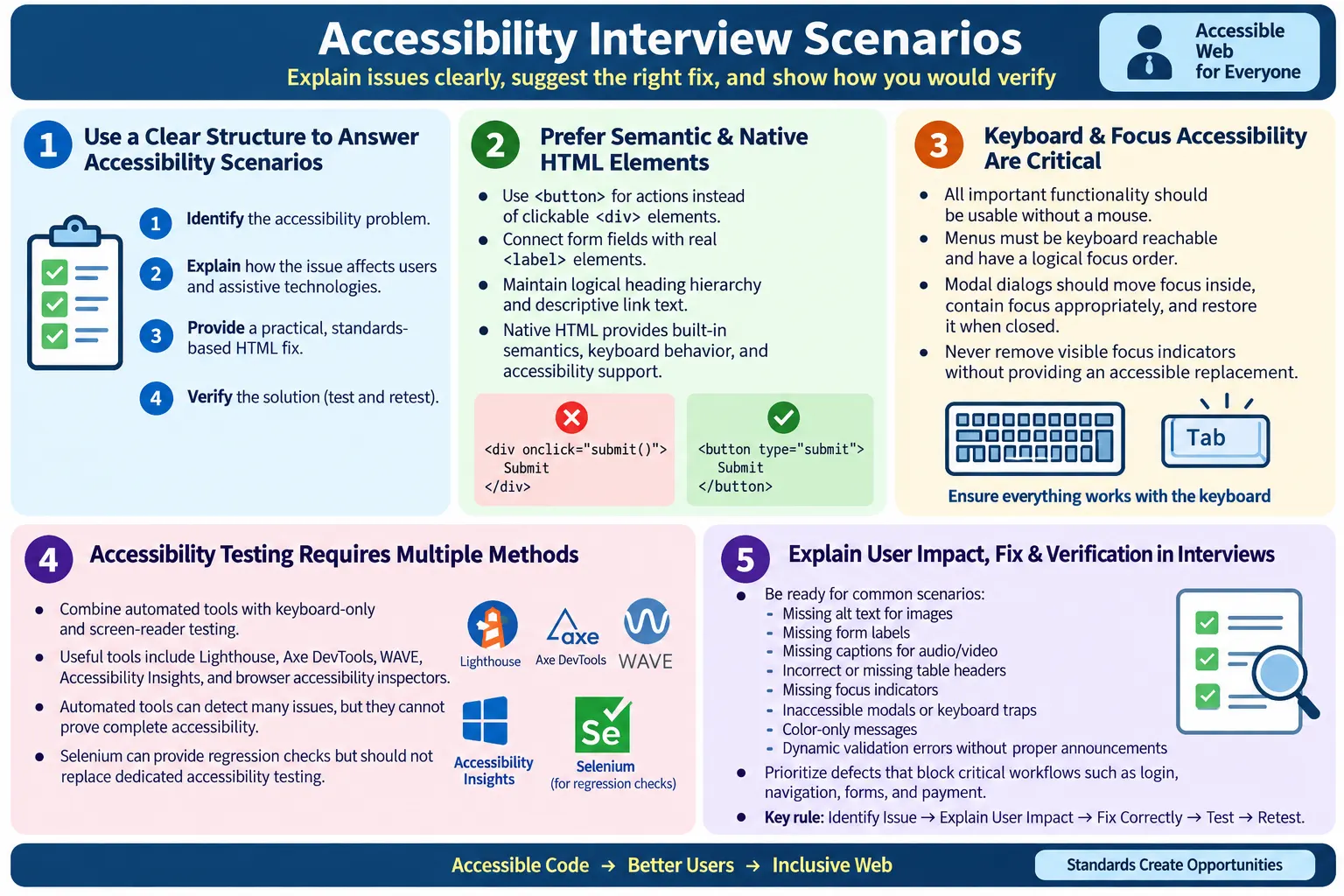
The best way to answer an accessibility scenario is to follow a clear structure. First, identify the accessibility problem. Second, explain why it affects users. Third, connect the problem to HTML semantics, WCAG principles, keyboard access, screen reader behavior, or assistive technology expectations. Fourth, propose a practical fix. Finally, explain how you would test the fix.
For example, if an interviewer shows an input field without a label, do not stop at saying "Add a label." A stronger answer would say that the input lacks an accessible name, screen reader users may not know what information is expected, and clicking a label can also improve usability for mouse and touch users. Then show the corrected HTML using <label for="email"> and <input id="email">. Finally, mention verifying it by inspecting the accessibility tree, using keyboard navigation, and checking that a screen reader announces the field name correctly.
This pattern works for almost every scenario. Accessibility interviews reward clear thinking. If you can explain the problem, the impact, the fix, and the verification method, you will sound practical and project-ready.
Scenario 1: Image Without Alt Text
A common scenario is an image element without an alt attribute. The interviewer may show this markup:
<img src="logo.png">The problem is that the image has no text alternative. Screen reader users may not know what the image represents. If the image fails to load, sighted users also lose the meaning that the image was supposed to communicate. The correct fix depends on the purpose of the image. If the image communicates content, the alt text should describe that content clearly and briefly.
<img
  src="logo.png"
  alt="Company Logo">
If the image is decorative and does not add meaningful information, it should use an empty alt attribute. This tells assistive technology to ignore it instead of announcing a file name or irrelevant image information.
<img
  src="background.png"
  alt="">
A strong interview answer should mention that alt text is not always a literal visual description. It should communicate the image's purpose in context. A logo in a header may use the company name. A chart may need a meaningful summary nearby. A decorative border should not be announced at all.
Scenario 2: Form Without Labels
Another frequent scenario is an input field without a label:
<input type="email">The problem is that the field may not have an accessible name. Screen reader users may hear only "edit text" or "email edit" depending on browser behavior, but the purpose may still be unclear. Users with motor difficulties also benefit from labels because clicking the label can move focus to the associated input.
The better pattern is to use a real label and connect it to the input with matching for and id values.
<label for="email">Email</label>
<input id="email" type="email">
This is one of the most important accessibility basics. Placeholder text is not a proper replacement for a label because it disappears when users type, may have low contrast, and does not provide the same persistent context. Interviewers often use this scenario to check whether candidates understand accessible names and form usability.
Scenario 3: Clickable Generic Element
A common frontend mistake is using a generic element as a button:
<div onclick="save()">
  Save
</div>
The problem is that a generic container is not a button. It is not keyboard accessible by default, it does not receive button semantics, it may not be reachable with the Tab key, and it does not automatically respond to Enter or Space like a native button. This creates a barrier for keyboard users and assistive technology users.
The correct fix is simple when the control performs an action: use a native button.
<button type="button">
  Save
</button>
If a custom control is unavoidable, developers must add role, focus management, keyboard event handling, and accessible naming. But in most cases, using the native element is the correct answer. A strong interview answer should explain that native HTML elements provide behavior and semantics for free, while custom controls must recreate those features carefully.
Scenario 4: Missing Heading Structure
Interviewers may show skipped heading levels such as:
<h1>Home</h1>
<h4>Products</h4>
The issue is that heading levels should communicate a logical document outline. Screen reader users often navigate by headings to understand page structure quickly. When a page jumps from <h1> to <h4> without meaningful hierarchy, it can make the page feel disorganized and harder to scan.
A better structure would use the next logical heading level:
<h1>Home</h1>
<h2>Products</h2>
The important point is not that headings can never skip in every possible document, but that they should reflect structure rather than styling. If a designer wants a smaller visual style, CSS should handle the visual appearance. The heading element should represent the content hierarchy.
Scenario 5: Poor Link Text
Another common accessibility scenario involves vague link text:
<a href="/course">
  Click Here
</a>
The problem is that "Click Here" does not describe the destination or purpose of the link. Screen reader users may navigate by links alone and hear a list of "Click Here" items without context. Users who scan the page visually also benefit from descriptive link text because it makes navigation faster and clearer.
A better link names the destination:
<a href="/course">
  HTML Course
</a>
Strong link text should make sense out of context. Instead of "Read more," use "Read more about semantic HTML" when possible. Instead of "Learn more," use "Learn more about accessibility testing." This improves usability, accessibility, and SEO at the same time.
Scenario 6: Color Alone Conveys Meaning
A frequent design issue is communicating errors, statuses, or required information only through color. For example, a form may show invalid fields only in red. The problem is that users with color vision deficiencies may not recognize the meaning. Users with low vision may also miss subtle color differences, especially if contrast is weak.
The better approach is to combine color with text, icons, and programmatic association. For an error message, the page should provide clear text such as:
<p id="email-error">
  Error: Email is required.
</p>
If the error belongs to an input field, the message should be associated with the field using appropriate attributes such as aria-describedby when needed. The user should not have to rely on color alone to understand what happened. A strong interview answer should mention that color can support meaning, but it should not be the only way meaning is communicated.
Scenario 7: Keyboard Cannot Reach Menu
Navigation menus are often built with mouse users in mind. A scenario may describe a menu that opens only on hover or cannot be reached with the keyboard. The problem is serious because many users rely on keyboard navigation, switch devices, voice control, or screen readers. If a menu cannot be reached without a mouse, those users may be blocked from major parts of the website.
A keyboard-accessible menu should allow users to tab to the menu, reach menu items, activate links, and close expanded content when needed. If the menu has collapsible behavior, keyboard support should be planned deliberately. The Tab key, Enter key, Space key, Escape key, and arrow keys may all be relevant depending on the menu pattern.
In an interview, it is useful to explain how you would test this. Put the mouse aside. Start from the browser address bar or top of the page. Use Tab and Shift+Tab to move through interactive elements. Confirm that focus is visible, menu items are reachable, expanded content can be operated, and focus order is logical. This practical testing description shows real experience.
Scenario 8: Missing Page Language
Another simple but important scenario is missing page language:
<html>The better version includes the correct language:
<html lang="en">The lang attribute helps screen readers choose the correct pronunciation rules. It can also help browsers, translation tools, and search engines understand the language of the page. If the page is in Tamil, the language should reflect that. If a page has mixed language content, language changes can be marked on specific elements when necessary.
This scenario is often used to check whether candidates understand that accessibility includes the document itself, not only visible UI controls. A valid page structure, language declaration, title, landmarks, and headings all contribute to a better experience.
Scenario 9: Image Button Without Text
Image-only buttons are common in toolbars and compact interfaces. The interviewer may show this markup:
<button>
  <img src="save.png">
</button>
The problem is that the button may not have a reliable accessible name. If the image has no alt text, a screen reader user may not know what the button does. If the image has an unhelpful file name or generic alt text, the button may be announced poorly.
One good pattern is to give the button an accessible label and mark the image as decorative:
<button aria-label="Save">
  <img src="save.png" alt="">
</button>
The image is decorative in this case because the button itself already has the accessible name. Another option is to include visually hidden text inside the button, depending on the project's CSS patterns. The key is that every interactive control must have a clear accessible name.
Scenario 10: Modal Dialog
Modal dialogs are a strong test of accessibility knowledge because they involve semantics, keyboard behavior, focus management, and state changes. A common scenario is a modal that opens visually, but focus remains on the background page. Keyboard users can tab behind the dialog, and when the dialog closes, focus does not return to the button that opened it.
The correct behavior is that focus should move into the modal when it opens. While the modal is open, keyboard focus should remain within the modal content. The user should be able to close the modal using an obvious control, and often with Escape when appropriate. When the modal closes, focus should return to the element that triggered it, so the user does not lose their place.
Where suitable, the native <dialog> element can help, but developers must still test behavior carefully. If a custom modal pattern is used, proper roles, accessible names, focus trapping, background inertness, and focus restoration become important. In an interview, a good answer should avoid saying only "add ARIA." ARIA alone does not manage focus or keyboard behavior. The implementation must actually work.
Scenario 11: Missing Focus Indicator
Designers sometimes remove browser focus outlines because they dislike the default appearance:
button:focus {
  outline: none;
}
The problem is that keyboard users need to know which element currently has focus. Without a visible focus indicator, navigating a page becomes confusing and sometimes impossible. Removing outlines without providing a replacement is a serious usability problem.
The better solution is to provide a visible custom focus style that fits the design system. It can use outline, border, box shadow, underline, or another clear visual treatment, as long as it is visible and consistent. The important point is that focus must not disappear.
In interviews, mention that focus indicators are not only for people with disabilities. Power users, keyboard users, temporary mouse users, and people using different devices all benefit from clear focus. Accessibility improvements often improve general usability.
Scenario 12: Placeholder Used as Label
A common form anti-pattern uses placeholder text as the only field description:
<input placeholder="Email">The problem is that placeholders are not labels. They disappear when the user types, may be hard to read, and do not provide persistent context. If a user returns to a field after entering data, they may no longer know what the field represents. Screen reader behavior can also vary depending on how fields are coded.
The better pattern is to use a visible label and optional placeholder guidance:
<label for="email">Email</label>
<input
  id="email"
  placeholder="Enter email">
This gives users a persistent field name and optional hint text. A strong answer should explain that placeholder text can supplement a label, but it should not replace one.
Scenario 13: Data Table Without Headers
Tables are another common interview topic. An interviewer may show markup where table headings are written with regular cells:
<table>
  <tr>
    <td>Name</td>
    <td>Age</td>
  </tr>
</table>
The issue is that the table does not identify header cells. Screen readers use table headers to communicate relationships between row and column data. Without headers, users may hear values without understanding what they represent, especially in larger tables.
A better structure uses <th> for header cells and separates the head and body when appropriate:
<table>
  <thead>
    <tr>
      <th>Name</th>
      <th>Age</th>
    </tr>
  </thead>
  <tbody>
    <tr>
      <td>Ravi</td>
      <td>30</td>
    </tr>
  </tbody>
</table>
For complex tables, additional attributes such as scope, captions, and careful table design may be needed. The key interview point is that tables should be used for tabular data and should expose relationships clearly.
Scenario 14: Video Without Captions
Videos without captions create barriers for users who are deaf or hard of hearing. Captions also help users in noisy environments, quiet workplaces, mobile situations, and non-native language contexts. Accessibility benefits often reach a wider audience than people expect.
The solution is to provide captions for spoken content and important audio information. When appropriate, transcripts should also be available, especially for educational content, interviews, webinars, and long-form media. Captions should be accurate, synchronized, and meaningful. Auto-generated captions may be a starting point, but they should be reviewed for quality.
In an interview, mention that media accessibility is not limited to the <video> tag. The content itself matters. If important information is communicated only through audio, captions or transcripts are needed. If important information is communicated only visually, audio description or alternative explanation may be needed depending on the content.
Scenario 15: Dynamic Error Messages
Modern forms often show validation errors dynamically after submission or while the user types. A common problem is that errors appear visually but are not announced to screen reader users. The user may submit a form, nothing appears to happen from the screen reader perspective, and the form remains incomplete.
The solution is to ensure errors are programmatically associated with the relevant fields and announced appropriately. For field-specific errors, use a clear message and connect it to the input. For global form errors, place the summary in a logical location and move focus when appropriate. ARIA live regions can be useful when content updates dynamically, but they should be used carefully and tested with real assistive technology.
A strong answer should describe both the HTML fix and the testing method. Submit the form with invalid data, verify visible error text, inspect the accessibility tree, confirm the field has an accessible description, and test with a screen reader if possible. Automated tools can catch some issues, but dynamic announcements often need manual verification.
Accessibility Testing Tools
Accessibility testing should combine tools and manual testing. Automated tools are useful because they catch many common issues quickly, such as missing alt text, missing labels, low contrast, duplicate IDs, invalid ARIA, and missing document language. Common tools include Chrome DevTools Accessibility panel, Lighthouse, Axe DevTools, WAVE, Accessibility Insights, and browser accessibility inspectors.
However, tools cannot prove full accessibility. They cannot always determine whether alt text is meaningful, whether link text is appropriate in context, whether keyboard order feels logical, whether instructions are understandable, or whether a modal behaves correctly in a full workflow. Screen reader testing with NVDA, JAWS, VoiceOver, or other assistive technologies can reveal issues that static scanners miss.
A mature testing approach includes automated scanning, keyboard-only testing, screen reader checks for critical flows, HTML inspection, design review, and WCAG-based acceptance criteria. In interviews, do not claim that one tool is enough. A practical answer recognizes the limits of automation and the importance of human judgment.
Selenium Perspective
Selenium can help verify some accessibility-related HTML attributes and page behavior. For example, it can check whether image elements have alt attributes, whether form fields have labels, whether buttons are displayed and enabled, whether focus moves after keyboard actions, and whether error messages appear after form submission.
WebElement image =
driver.findElement(By.tagName("img"));

System.out.println(
image.getAttribute("alt"));
This kind of check can be useful as a regression guard, but Selenium alone cannot determine full accessibility compliance. It does not understand every user need, every assistive technology behavior, or every WCAG interpretation. Selenium is best used along with dedicated accessibility libraries and manual testing.
For automation engineers, the key is to avoid turning accessibility into only attribute checking. A missing alt attribute is easy to detect, but meaningful alt text requires context. A button may be present, but it must also have an accessible name and work with keyboard input. A form may submit, but errors must be understandable and announced properly. Accessibility automation should support quality, not replace accessibility thinking.
Common Interview Questions
How do you test accessibility? A strong answer combines manual keyboard testing, screen reader testing, automated accessibility tools, HTML inspection, and WCAG compliance checks. It also prioritizes critical user journeys such as navigation, login, search, forms, checkout, and error handling.
What is the most common accessibility issue? Common issues include missing form labels, missing alt text, poor heading hierarchy, low color contrast, inaccessible custom controls, missing focus indicators, keyboard traps, vague link text, and dynamic errors that are not announced.
Why should placeholders not replace labels? Placeholders disappear as users type, may be visually weak, and do not provide persistent context. Labels remain visible, identify the field, and improve accessibility and usability.
Why should buttons use <button> instead of generic elements? A native button provides built-in semantics, focus behavior, keyboard support, and expected interaction patterns. A generic element requires extra work and is easy to implement incorrectly.
Why is keyboard testing important? Many users cannot use a mouse or prefer keyboard navigation. Screen reader users also depend heavily on keyboard interaction. If a feature cannot be operated by keyboard, it is not accessible to many users.
Scenario Summary
| Scenario | Best Practice |
|---|---|
| Image without alt | Add meaningful alt text or empty alt for decorative images |
| Input without label | Associate a real <label> with the input |
| Clickable generic element | Use a native <button> for actions |
| Skipped headings | Maintain a logical heading hierarchy |
| Vague links | Use descriptive link text |
| Color-only messages | Add text, icons, and programmatic association |
| Keyboard inaccessible menu | Ensure full keyboard support |
| Missing page language | Set the correct lang attribute |
| Image-only button | Provide a clear accessible name |
| Modal dialog | Manage focus correctly |
| Hidden focus indicator | Provide visible focus styles |
| Placeholder as label | Use a real label and optional placeholder guidance |
| Table without headers | Use <th> and proper table structure |
| Video without captions | Provide captions and transcripts where appropriate |
| Dynamic validation | Associate and announce errors appropriately |
Prioritizing Accessibility Defects
In real projects, accessibility defects should be prioritized by user impact, frequency, and business importance. A keyboard trap in checkout, an inaccessible login form, or a modal that blocks screen reader users is usually more urgent than a minor wording improvement on a rarely used page. This does not mean minor issues should be ignored, but interviews often test whether you can think beyond isolated defects and evaluate risk.
Critical flows should receive the deepest accessibility review. Login, registration, search, navigation, payment, form submission, account management, course enrollment, and error recovery are examples of flows where accessibility failures can directly block users. If a user cannot reach a menu, submit a form, understand an error, or complete a transaction, the defect has a high practical impact.
A good accessibility defect report should include the affected page, environment, steps to reproduce, expected behavior, actual behavior, assistive technology or keyboard behavior observed, screenshots or recordings when useful, and a suggested fix. For example, instead of reporting "menu inaccessible," a stronger report says, "Keyboard focus cannot reach submenu items under Courses. Expected: Tab or arrow key access should allow keyboard users to reach all submenu links. Actual: submenu opens only on mouse hover, so keyboard users cannot access those links."
This level of detail helps developers reproduce and fix the issue quickly. It also shows that the tester understands accessibility as a concrete product quality concern. In interviews, explaining how you would prioritize and report accessibility defects demonstrates readiness for real team work.
Verification After the Fix
Accessibility fixes should always be retested. It is common for a change to solve one issue while introducing another. For example, adding ARIA to a custom control may improve its name but still leave it unreachable by keyboard. Adding a focus trap to a modal may keep focus inside the dialog but fail to restore focus when the modal closes. Adding an error message may make the message visible but not associate it with the input field.
Verification should repeat the original failing scenario and then test the surrounding workflow. If the issue was a missing label, confirm that the field has the correct accessible name. If the issue was keyboard navigation, test the complete keyboard path. If the issue was a modal dialog, test opening, moving inside, closing, and returning focus. If the issue was dynamic validation, test both visual and screen reader behavior.
This is an important interview point because accessibility is behavior, not just markup. Correct-looking code can still behave poorly, especially in JavaScript-heavy applications. A professional answer should mention retesting with the same user path that exposed the defect and using tools only as part of a broader verification strategy.
Practical Interview Tips
When answering accessibility scenario questions, avoid giving only a code snippet. Interviewers want to hear your reasoning. Start by identifying the issue, then explain the user impact, then provide a fix, and finally explain verification. This shows that you understand accessibility as a user-centered quality practice rather than a memorized list of rules.
Use practical language. For example, say, "A screen reader user may not know what this field is for," or "A keyboard user cannot open this menu," or "A person with color vision deficiency may not recognize this error state." These explanations show empathy and technical understanding at the same time.
Also remember that accessibility is a team responsibility. Developers write markup, designers define interaction patterns and visual states, testers verify behavior, product owners set acceptance criteria, and organizations decide quality standards. In interviews, it is useful to mention collaboration because accessibility issues are best prevented early instead of patched late.
Interview-Ready Answer
Accessibility interview scenarios typically involve identifying and fixing real-world issues such as missing image alt text, unlabeled form controls, incorrect heading hierarchy, clickable generic elements, poor keyboard navigation, inaccessible dialogs, missing focus indicators, color-only error messages, placeholder-only forms, tables without headers, videos without captions, and dynamic errors that are not announced to assistive technology users.
A strong answer identifies the problem, explains its impact on users, provides a standards-based HTML solution, and describes how the fix would be verified using keyboard testing, screen readers, accessibility tools, HTML inspection, and WCAG guidelines. The goal is not only to know the rule, but to understand why the rule matters and how it improves real user experience.
One-Line Insight
In accessibility interviews, success comes from explaining not just what is wrong, but why it affects users and how to fix it correctly.