Accessibility Impact of Text Tags
Introduction
Accessibility is the practice of making web content usable for everyone. This includes people who use screen readers, keyboard navigation, voice control software, magnifiers, high contrast settings, switch devices, and other assistive technologies. Accessibility also helps users with temporary limitations, slow devices, noisy environments, small screens, poor lighting, or limited technical background. A page that is accessible is usually easier to read, easier to navigate, and easier to maintain.
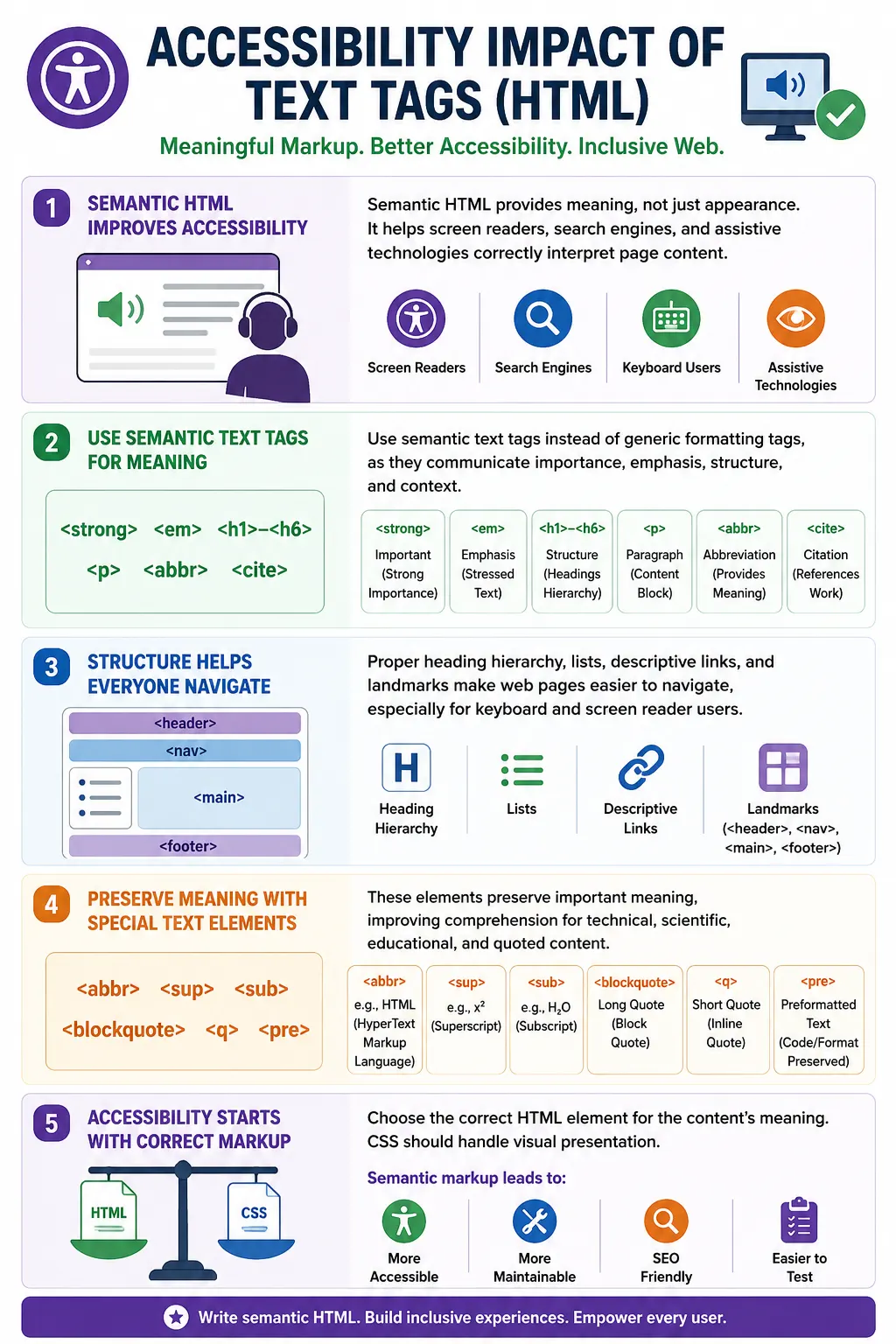
HTML text tags play a major role in accessibility because many of them provide semantic meaning, not just visual formatting. A tag such as <strong> does more than make text bold. It indicates importance. A tag such as <em> does more than make text italic. It indicates emphasis. A heading tag such as <h1> does more than enlarge text. It creates document structure. This semantic meaning helps assistive technologies understand content correctly.
Beginners often learn HTML by looking at the visual result in the browser. That is natural, but it can lead to a limited understanding. If two elements look similar, it is tempting to think they are the same. For example, <b> and <strong> often appear bold. <i> and <em> often appear italic. But accessibility depends on meaning, not only appearance. When the correct semantic tag is used, screen readers and other tools can communicate the content more accurately.
Why Accessibility Matters
Accessibility matters because the web is used by people in many different ways. Some users do not see the page visually. Some users cannot use a mouse. Some users zoom the page heavily. Some users rely on headings to jump through sections. Some users listen to content through a screen reader instead of reading it visually. If HTML is written only for visual appearance, these users may lose important information.
Consider two examples. The first uses visual formatting only.
<b>Warning</b>The second uses semantic formatting.
<strong>Warning</strong>Both examples may appear bold in the browser. Visually, they can look the same. But the second example communicates importance. A screen reader or accessibility tool has a better chance of understanding that the word Warning is not merely styled text; it is important text. This is why semantic HTML is the foundation of accessible content.
How Screen Readers Work
Screen readers do not experience a webpage the way sighted users do. They do not look at font size, spacing, color, or indentation as a human viewer would. Instead, they analyze the HTML structure, element types, semantic meaning, attributes, labels, relationships, and document order. They then convert that information into speech, braille output, or navigable controls.
Because screen readers depend heavily on structure, HTML choices matter. A large visual heading created with a generic <div> is not the same as a real <h1>. A fake list made with line breaks is not the same as a real <ul> or <ol>. A bold warning made with a generic <span> does not carry the same meaning as <strong>. The page may look acceptable, but its accessible structure may be weak.
Semantic HTML Improves Accessibility
Semantic HTML means using elements according to their meaning. A heading should be a heading. A paragraph should be a paragraph. A list should be a list. A quote should be a quote. An abbreviation should be marked as an abbreviation. This gives assistive technologies a meaningful map of the page.
<h1>HTML Tutorial</h1>A screen reader recognizes this as Heading Level 1 and may allow the user to jump directly to it. Now compare that with a visually large generic container.
<div style="font-size:40px">
HTML Tutorial
</div>
This may look like a heading, but structurally it is only a generic container. The heading meaning is missing. A screen reader user cannot reliably use it as a heading in the page outline. This difference is invisible to many sighted users, but it is very important for accessibility.
Accessibility Impact of Headings
Headings are one of the most important accessibility features in HTML. They create the outline of the page and help users understand how content is organized. Screen reader users often navigate by headings to skim a page quickly, just as sighted users visually scan large text headings.
<h1>HTML Tutorial</h1>

<h2>Forms</h2>

<h3>Text Input</h3>
With this structure, a screen reader can announce Heading Level 1: HTML Tutorial, Heading Level 2: Forms, and Heading Level 3: Text Input. The user understands the hierarchy and can move between sections efficiently.
A poor version might use generic elements instead.
<div>HTML Tutorial</div>

<div>Forms</div>

<div>Text Input</div>
Visually, CSS could make those <div> elements large and bold, but the screen reader only sees generic text. The structure is lost. This makes the page harder to navigate, especially when it contains many sections.
Accessibility Impact of Paragraphs
Paragraphs also matter. The <p> element identifies separate blocks of written content. This helps screen readers present text in a natural reading flow. It also helps browsers apply consistent spacing and helps developers maintain clean structure.
<p>Paragraph One</p>

<p>Paragraph Two</p>
When paragraphs are marked properly, the content is grouped logically. If a developer uses only line breaks or generic containers, the reading flow can become less predictable. Good paragraph structure is especially important in tutorials, documentation, policies, articles, and educational content where users rely on clear separation of ideas.
Accessibility Impact of <strong>
The <strong> element indicates strong importance. Browsers usually render it in bold, but bold appearance is not its main purpose. Its purpose is to mark text that is important in meaning.
<strong>Important</strong>Some screen readers may add vocal emphasis or treat the text as important depending on the user's settings and software behavior. The exact output is not identical everywhere, but the semantic signal is present in the HTML.
Compare this with <b>.
<b>Important</b>The <b> element can visually offset text, but it does not communicate the same level of importance. If the word is truly important, such as Warning, Required, Critical, or Do not delete this file, <strong> is usually the better choice.
Accessibility Impact of <em>
The <em> element indicates emphasis. Emphasis changes the meaning of a sentence by stressing a word or phrase. For example, the sentence You must save your work has a different force when must is emphasized.
You <em>must</em> save your work.Screen readers may stress the emphasized word depending on configuration. Even when the vocal change is not obvious, the semantic meaning is still present. The markup says that the word must is emphasized.
Compare this with <i>.
You <i>must</i> save your work.The <i> element may visually italicize text, but it does not mean emphasis in the same way. If the content needs meaningful emphasis, use <em>. If the text is only visually offset for a different reason, such as a technical term, foreign phrase, or alternate voice, <i> may be appropriate.
Accessibility Impact of Quotes
Quote elements also help accessibility because they identify quoted material. A <blockquote> represents a longer quotation that stands apart from the surrounding text. Screen readers may announce quote boundaries, helping users understand where the quoted content begins and ends.
<blockquote>
Learning never exhausts the mind.
</blockquote>
A screen reader may announce this as a quote, read the content, and then announce the end of the quote. This helps distinguish the author's words from quoted words.
The <q> element identifies a short inline quotation.
<q>Hello</q>Inline quote boundaries are useful when quoted phrases appear inside paragraphs. The visual quotation marks help sighted users, while the semantic tag helps tools understand that the text is quoted.
Accessibility Impact of Abbreviations
Abbreviations can create accessibility issues when they are unexplained. Without markup, a screen reader may read HTML as H T M L, pronounce a term unexpectedly, or provide no expansion. Users who are new to the topic may not understand the abbreviation.
HTMLUsing <abbr> with a title attribute provides more context.
<abbr title="HyperText Markup Language">
HTML
</abbr>
Depending on the screen reader and settings, the user may be able to access the full form HyperText Markup Language. Even when not announced automatically, the markup still improves semantic clarity. In educational content, this is particularly helpful for terms such as API, URL, DOM, HTTP, JSON, and CSS.
Accessibility Impact of Superscript and Subscript
Superscript and subscript are small formatting details with real meaning in math, science, and technical writing. The expression x<sup>2</sup> means x squared, not simply x followed by the number 2.
x<sup>2</sup>A screen reader may interpret this as x squared or may announce the superscript relationship depending on software behavior. This is more meaningful than plain text such as x2.
Subscript is equally important in chemical formulas.
H<sub>2</sub>OThis represents H two O, or water. The subscript is part of the meaning. If the formula is written as H2O without markup, users may still understand it visually, but the semantic structure is weaker.
Accessibility Impact of Lists
Lists are another area where semantic HTML matters. A proper list tells assistive technology how many items exist and where each item begins. This helps users understand grouped content quickly.
<ul>
  <li>HTML</li>
  <li>CSS</li>
  <li>JavaScript</li>
</ul>
A screen reader can announce a list with three items and then read each item. This gives the user context before hearing the content. A fake list made with line breaks loses that structure.
HTML<br>
CSS<br>
JavaScript
This may look like a list visually, but structurally it is just text separated by line breaks. Use real list elements when content is a list.
Accessibility Impact of <pre>
The <pre> element preserves spacing, indentation, and line breaks. This can be useful for code samples, terminal commands, configuration files, logs, and formatted output. When formatting is part of the meaning, preserving it helps users understand the content.
<pre>
Line 1
Line 2
</pre>
However, <pre> should be used carefully. Long lines may require horizontal scrolling, which can be difficult for users who zoom the page or use small screens. For code examples, combining <pre> with <code> gives both formatting preservation and code semantics.
Accessibility Impact of Links
Links must be descriptive because screen reader users often navigate by links out of context. A link that says HTML Course is clear. A link that says Click Here is vague because the user must hear surrounding text to know where it goes.
<a href="course.html">
HTML Course
</a>
A screen reader can announce: Link HTML Course. This is meaningful. Now compare it with a weak link.
<a href="course.html">
Click Here
</a>
Click Here does not describe the destination or action. Descriptive link text improves accessibility, usability, SEO, and testing clarity.
Accessibility Impact of Language Tags
The language attribute helps screen readers choose the proper pronunciation rules. A page written in English should usually include lang="en" on the root <html> element.
<html lang="en">Without a language attribute, pronunciation may be incorrect, especially for multilingual users. If part of a page uses another language, the language can be specified on that section or inline element. This helps assistive technologies pronounce the content more accurately.
Accessibility Impact of Semantic Sections
Semantic sectioning elements such as <header>, <nav>, <main>, and <footer> create landmarks. Landmarks help screen reader users jump directly to major areas of the page.
<header>...</header>
<nav>...</nav>
<main>...</main>
<footer>...</footer>
If the same layout is built only with nested <div> elements, the visual page may look identical, but meaningful landmarks are missing. Semantic regions make large pages easier to navigate.
Visual Styling vs Accessibility
Visual styling and accessibility are related, but they are not the same. A page can look polished and still be inaccessible. A word can look bold without being marked important. A line can look like a heading without being a real heading. A group of items can look like a list without being a real list.
<span style="font-weight:bold">
Warning
</span>
This looks bold, but accessibility tools see a generic span. A better version uses semantic markup.
<strong>
Warning
</strong>
Now the HTML communicates importance. CSS can still control how it looks, but the meaning is preserved.
Accessibility Best Practices
The first best practice is to use semantic elements whenever they match the meaning of the content. Use <strong> for importance, <em> for emphasis, <blockquote> and <q> for quotes, <abbr> for abbreviations, real heading tags for headings, and real list tags for lists.
The second best practice is to maintain a proper heading hierarchy. Start with one clear <h1>, then use <h2> for main sections and <h3> for subsections. Avoid skipping levels purely for visual size. If the design needs a smaller or larger heading, use CSS while keeping the correct heading level.
The third best practice is to use descriptive links. Link text should make sense on its own. Instead of Click Here, use HTML Course, Download Test Report, Read Privacy Policy, or Start Mock Test. This helps screen reader users and improves the clarity of automated tests.
The fourth best practice is to expand abbreviations when helpful. A term such as API can be marked as <abbr title="Application Programming Interface">API</abbr>. This is especially valuable in beginner-friendly tutorials and documentation.
Common Accessibility Mistakes
A common mistake is using <b> when <strong> is intended. If the text is important, use <strong>. Another common mistake is using <i> when <em> is intended. If the word changes sentence meaning through emphasis, use <em>.
<b>Warning</b><i>must</i>Skipping heading levels is another frequent problem. A page should not jump from <h1> directly to <h4> just because the visual size looks right. Heading levels should describe structure.
<h1>HTML</h1>

<h4>Forms</h4>
Using <br> to create fake lists is also a common mistake. If the content is a list, use <ul>, <ol>, and <li>.
Accessibility Benefits Summary
Semantic text tags help screen readers, voice assistants, keyboard users, search engines, and assistive technologies understand content correctly. They provide page structure, content grouping, importance, emphasis, quote identification, abbreviation expansion, mathematical meaning, scientific notation, preserved formatting, and navigable landmarks.
| Element | Accessibility Benefit |
|---|---|
<h1>-<h6> | Page structure and navigation |
<p> | Content grouping |
<strong> | Importance indication |
<em> | Emphasis indication |
<blockquote> | Quote identification |
<q> | Inline quote identification |
<abbr> | Abbreviation expansion |
<sup> | Exponent meaning |
<sub> | Subscript meaning |
<pre> | Formatting preservation |
Common Interview Questions
A common interview question is: why is semantic HTML important for accessibility? The answer is that semantic HTML provides meaning that assistive technologies can understand. It helps screen readers identify headings, paragraphs, links, quotes, lists, abbreviations, and emphasized text correctly.
Another common question is: which is better for accessibility, <strong> or <b>? The answer is <strong> when the text is important. <b> may visually bold text, but <strong> communicates importance.
Interviewers may also ask which is better for accessibility, <em> or <i>. The answer is <em> when the text needs meaningful emphasis. Another likely question is why headings are important. Headings provide navigable page structure and help users understand content hierarchy.
They may also ask why <abbr> is useful. The answer is that it provides the full meaning of abbreviations through the title attribute, giving users and tools more context.
Interview-Ready Answer
Text tags significantly impact accessibility because assistive technologies rely on semantic HTML to understand content structure and meaning. Elements such as headings, paragraphs, strong emphasis, quotations, abbreviations, lists, links, superscript, subscript, and preformatted text help screen readers provide a more accurate and navigable experience for users. Accessibility improves when HTML describes meaning, not just appearance.
Key Takeaway
Accessible HTML starts with meaningful HTML. If content is a heading, use a heading. If it is a paragraph, use a paragraph. If it is important, use <strong>. If it is emphasized, use <em>. If it is a list, use a real list. If it is a quote, abbreviation, formula, link, or formatted code block, choose the element that describes that meaning.
CSS should control visual presentation, but HTML should preserve the structure and meaning. When developers separate meaning from appearance, the page becomes more accessible, easier to maintain, easier to test, and easier for users to understand.
One-Line Insight
Accessibility improves when HTML describes meaning, not just appearance.