Examples Table
The Examples table is used with Scenario Outline to provide multiple sets of input data for the same behavior.
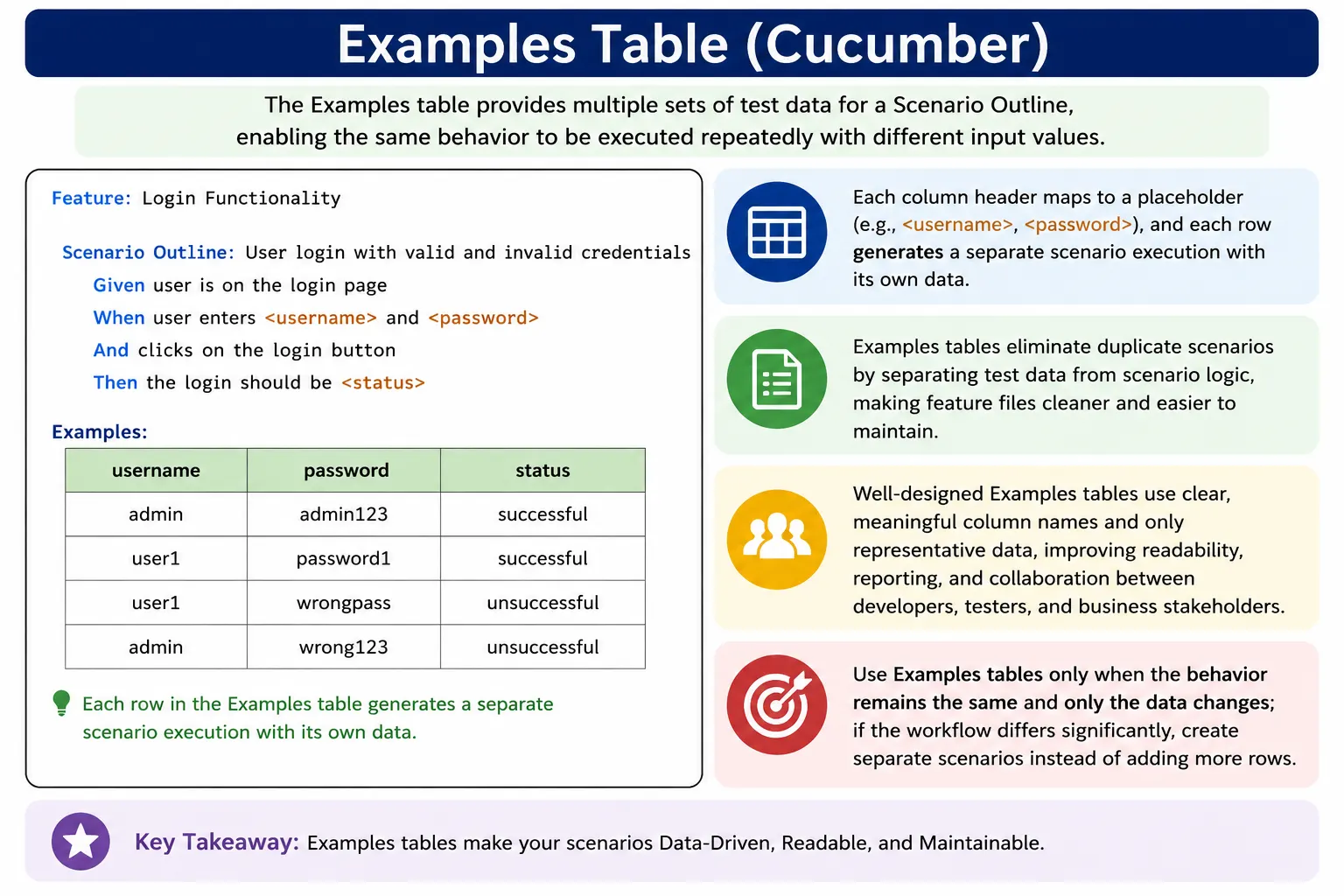
Each row in the table represents one execution of the scenario with different values.
Examples Table in Cucumber: Full Explanation
An Examples table is the data source used by a Scenario Outline in Cucumber. It provides multiple sets of input values for the same behavior so that one scenario template can run many times with different data. In a normal Scenario, the values are usually fixed directly inside the steps. In a Scenario Outline, the steps contain placeholders, and the Examples table supplies the actual values for those placeholders.
This makes Examples tables one of the most important parts of data-driven testing in Gherkin. They allow teams to describe one behavior clearly and then show the important data variations that must be checked. Instead of writing several almost identical scenarios, the team writes one Scenario Outline and places the different inputs and expected outputs in a table. Cucumber then executes the scenario once for each row in that table.
The purpose of an Examples table is not only technical. It also improves communication. A well-written table shows business users, testers, developers, and automation engineers exactly which combinations are being validated. For example, a login Examples table can show valid credentials, invalid credentials, and expected results. A search Examples table can show important product names. A registration Examples table can show names and email addresses used to validate the flow. This keeps test data visible and understandable inside the feature file.
Examples tables work only with Scenario Outline. They are not used with a normal Scenario. This distinction matters because a normal Scenario represents one concrete example, while a Scenario Outline represents a reusable pattern of behavior. The Examples table completes that pattern by providing the actual data rows. Without an Examples table, a Scenario Outline has placeholders but no values to substitute.
Why Examples Tables Matter in Real Projects
In real projects, the same feature usually needs to be tested with more than one data set. A login feature may behave differently for admin users, normal users, locked users, and invalid users. A password reset feature may need to check valid email addresses, invalid email addresses, and unregistered email addresses. A checkout feature may need to validate different payment methods. Writing a separate scenario for every data variation quickly leads to duplication.
Duplication makes feature files harder to maintain. If the same five steps are copied into ten scenarios, any wording change must be repeated ten times. If one scenario is updated and another is missed, the feature file becomes inconsistent. Examples tables solve this by keeping the repeated behavior in one place and moving the variable data into rows.
Examples tables also help reviewers understand input-output combinations. A good table shows what value is entered and what result is expected. This is especially useful for validation rules. For example, an email validation table can show which email values are valid and which are invalid. A quantity table can show accepted quantities. A role table can show which dashboard each role should see. The table becomes a compact but readable form of specification.
Another reason Examples tables are important is test reporting. Each row becomes a separate scenario execution. If a specific row fails, the report can show which data set caused the failure. This helps testers and developers debug faster. Instead of seeing a generic failure, the team can identify that the issue happened for a specific username, product, role, email, or status.
How an Examples Table Connects to Scenario Outline
A Scenario Outline contains placeholders written inside angle brackets. These placeholders must match the column headers in the Examples table. During execution, Cucumber replaces each placeholder with the value from the current row. If the step contains "<username>" and the current row has username as admin, Cucumber generates a step using "admin". The same process happens for every placeholder in the scenario outline.
This mapping is strict and should be treated carefully. The column header should match the placeholder name exactly. If the step uses <password> but the table column is named passcode, the mapping will not represent the intended data. Clear naming reduces mistakes and makes the feature file easier to understand.
The first row of the Examples table is always the header row. It defines the available placeholders. The rows below it are data rows. Each data row represents one scenario execution. A table with one header row and five data rows results in five executions. A table with one header row and ten data rows results in ten executions.
The table is written using pipe symbols. Although Gherkin does not require perfect visual alignment in every tool, neat formatting is strongly recommended. A well-aligned table is easier to read, easier to review, and easier to maintain. Poorly formatted tables can hide mistakes such as missing values, extra columns, or unclear data.
Execution Behavior of Examples Tables
When Cucumber executes a Scenario Outline, it expands the outline using the Examples table. Each row is treated as a separate scenario instance. This is important because the rows do not form a loop inside a single step definition. They are separate executions of the same scenario structure.
For example, if an Examples table has five rows, the scenario outline will run five times. Each execution should be independent. The second row should not depend on something created by the first row. The third row should not rely on the result of the second row. This independence is important for stable automation, parallel execution, and reliable reports.
Failures are usually reported per row. If the third row fails and the other rows pass, the report can show that specific row as failed. This makes troubleshooting easier. The developer can inspect the input values from the failed row and compare them with the expected behavior. This is one of the practical advantages of Examples tables over manually looping through test data inside a step definition.
Because each row is an execution, the size of the Examples table affects test execution time. A small table with three meaningful rows is usually fine. A large table with fifty rows may slow down the test suite and make the feature file harder to read. Teams should choose rows carefully and keep the table focused on representative examples.
Good Examples Table Design
A good Examples table has clear column names, minimal data, and a strong connection to the behavior being tested. The table should help the reader understand the rule. It should not require the reader to decode technical abbreviations or inspect step definitions to understand the meaning of the values.
For example, a table with columns named role and access is clear when the scenario is about role-based access. The row admin and allow communicates that admin access should be allowed. The row user and deny communicates that user access should be denied. The data is small, but the business meaning is clear.
Good tables are also focused. If the scenario is about role access, the table should not include unrelated values like browser, environment, color theme, database name, or execution mode unless those values are directly part of the behavior. Mixing unrelated data makes the table harder to understand and often creates meaningless combinations.
A good Examples table also avoids unnecessary columns. Every column should be used by the scenario outline or should add clear business value. Extra columns make the table wider and harder to read. If a column is not used in the steps and does not clarify the example, it probably does not belong in the table.
Bad Examples Table Design
A bad Examples table tries to carry too much information. For example, a table with username, password, email, phone, address, browser, role, country, product, payment method, and expected result may be technically possible, but it is not readable. It becomes a spreadsheet inside a feature file. Business users may stop reviewing it, and automation engineers may struggle to maintain it.
Another sign of poor design is vague column names. Names like value1, value2, data, input, output, or result do not explain the business meaning. The table may execute, but it does not communicate well. Better names such as username, password, expectedMessage, product, country, quantity, role, and dashboard are easier to understand.
Bad tables also mix unrelated data. If one row tests admin login, another row tests invalid email, and another row tests browser launch, the table is not describing one behavior. It is combining unrelated tests. This makes failures difficult to interpret and makes the feature file confusing.
Huge Examples tables can also be a problem. Sometimes teams add every possible test data value into the feature file because they want high coverage. But BDD feature files are primarily communication artifacts. They should show meaningful examples of behavior. Exhaustive data testing may be better handled in lower-level tests, API tests, or external data-driven automation.
Single vs Multiple Examples Tables
Cucumber allows multiple Examples blocks under one Scenario Outline. This can be useful when the same behavior has logical groups of data. For example, login credentials can be grouped into valid credentials and invalid credentials. Address validation can be grouped into domestic addresses and international addresses. Role access can be grouped into allowed roles and denied roles.
Multiple Examples blocks improve readability when grouping has business meaning. The label after Examples helps readers understand the purpose of each group. It can also make reports easier to interpret because failures can be associated with a named group.
However, multiple Examples blocks should not be used to force different behaviors into one outline. If valid login and account lockout follow different workflows, separate outlines may be clearer. If different groups require different steps, they probably represent different behavior. In that case, splitting the scenario is better than creating a complicated table.
When to Use Examples Tables
Use Examples tables when the same behavior applies, only the data varies, and the expected outcome can be expressed cleanly through placeholders. This is the ideal situation. The table provides data variation while the scenario outline keeps the behavior consistent.
Login with multiple credentials is a common use case. Product search with multiple products is another. Registration with different names and emails, country dropdown selection, quantity entry, email validation, date picker values, and role-based dashboard access are also good examples. In each case, the flow remains mostly the same while the values change.
Examples tables are also useful when business stakeholders want to see the exact data variations being tested. For example, a product owner may care which roles are allowed to access a dashboard. A business analyst may care which password reset statuses are expected. Keeping that data in the feature file makes the specification transparent.
When to Avoid Examples Tables
Avoid Examples tables when logic differs significantly across rows. If each row needs different steps, different validations, or different setup conditions, the table may hide too much complexity. Separate scenarios will often be clearer.
Also avoid using Examples tables for UI-driven testing details that are not part of the business behavior. For example, using a table only to run the same behavior across browsers may not belong in Gherkin. Cross-browser execution is usually better controlled through the automation framework or CI configuration. Feature files should focus on what the system should do, not every technical condition under which the test runs.
Examples tables should also be avoided when the table becomes too large to read. If the feature file starts looking like a spreadsheet, it may be time to move detailed data coverage elsewhere. A few meaningful examples in Gherkin can document the rule, while broader coverage can be handled by other automated test layers.
Examples Table and Step Definitions
In automation code, the values from the Examples table flow into step definitions through placeholders. For example, if the feature file says user enters username "<username>", the step definition can accept a string parameter. The value from the current row is passed into the method at runtime.
This keeps the feature file readable and the automation code reusable. The Examples table contains the data. The scenario outline contains the behavior. The step definition contains the implementation. This separation is important in a maintainable Cucumber framework.
Step definitions should not contain excessive conditional logic based on every Examples row. If the code has many if-else branches for different table values, the scenario outline may be trying to cover too many behaviors. Ideally, the same step definition should handle the same kind of action consistently across rows.
Real-Time Examples
A login Examples table can contain username, password, and result columns. Each row shows one login attempt. Valid credentials may produce Success, while invalid credentials may produce Failure. This makes the relationship between input and output very clear.
A search product Examples table may contain only one column: product. Each row provides a product name such as Laptop, Mobile, or Headphones. The scenario outline can search for that product and verify that it appears in the results. This is a clean use because the same behavior is repeated with different product names.
A registration Examples table may include firstName, lastName, and email. This helps verify that the registration flow works for different user data. The table should remain small enough to read. If many additional fields are required, the team should consider whether the scenario is too detailed for Gherkin.
Country dropdown, quantity selection, email validation, and date picker scenarios also work well with Examples tables. They show simple, meaningful data variations. Role-based login is slightly more complex because it may include role, username, password, and dashboard columns. This can still be readable if the table remains small and focused.
Common Mistakes
The most common mistake is overusing Examples tables instead of writing multiple scenarios. If the behavior changes, separate scenarios may be better. Compactness should never be chosen over clarity. A feature file should explain behavior first and reduce duplication second.
Another mistake is mixing unrelated data in one table. A table should represent one behavior and its meaningful variations. Mixing login data, browser data, product data, and environment data in one table creates confusion and weakens the business value of the feature file.
Vague column names are also common. Column names should be descriptive and match the placeholders clearly. A reader should know what the value means without opening the step definition code.
Large tables hurt readability. They also increase execution time and maintenance effort. If many data rows are required, split the data into meaningful groups or move broad data coverage to a more suitable testing layer.
Best Practices for Examples Tables
Use Examples only with Scenario Outline. Keep the table small and focused. Use descriptive column names such as username, password, expectedResult, product, country, quantity, email, status, role, and dashboard. These names explain the business meaning of the data and help step definitions remain clear.
Include both positive and negative test data when appropriate, but only if the workflow remains understandable. If positive and negative cases represent different behavior, split them into separate scenario outlines. This improves readability and makes reports easier to analyze.
Keep all rows consistent with the same number of columns. Missing values, extra cells, or uneven formatting can cause confusion and execution issues. Format the table neatly so it remains easy to read in the editor, code review, and reports.
Store only test data in the Examples table. Keep business logic in the scenario wording and implementation logic in step definitions. The table should not become a place where rules are hidden in cryptic values. If the rule is important, make it readable.
Review Examples tables with business analysts or product owners when possible. Since the table represents executable examples of behavior, business review helps confirm that the right data variations are being tested. This supports the BDD goal of shared understanding.
Interview Perspective
In interviews, Examples tables are usually discussed together with Scenario Outline. A strong answer should explain that an Examples table provides data for a Scenario Outline, and each row represents a separate scenario execution. The candidate should mention that column headers must match placeholders in the scenario steps and that the table is useful for data-driven testing.
A good interview answer should also include limitations. Examples tables should be used when the behavior is the same and only data varies. They should be avoided when the logic changes significantly, when the table becomes very large, or when unrelated data is mixed together. Mentioning these points shows practical experience rather than only syntax knowledge.
Examples such as login, search, registration, country dropdown, quantity selection, email validation, date selection, and role-based login are useful in interviews because they connect the concept to real automation work. It also helps to explain that the values from the table are passed to step definitions as parameters.
Practical Summary
An Examples table is the data section of a Scenario Outline. It provides the values that replace placeholders and drives multiple executions of the same behavior. Each data row becomes a separate scenario execution, which improves reporting and debugging. The table helps avoid duplicate scenarios and clearly shows input-output combinations.
The best Examples tables are small, clear, behavior-focused, and meaningful to business users. They use descriptive column names, avoid unrelated data, and support the same behavior across all rows. Used well, Examples tables make Cucumber feature files cleaner, more maintainable, and more useful as living documentation.
How Teams Should Maintain Examples Tables
Maintaining Examples tables is just as important as writing them correctly the first time. In many projects, feature files start clean but become difficult to read after months of changes. New rows are added quickly, old rows are not removed, column names become inconsistent, and the original business purpose of the table becomes unclear. To avoid this, teams should treat Examples tables as part of the product specification, not just test data for automation.
One useful maintenance habit is reviewing the table whenever a related requirement changes. If a new business rule is added, the team should ask whether the existing Examples table still communicates the rule correctly. If a rule is removed, outdated rows should be removed as well. Keeping old rows that no longer represent valid behavior can create false failures and confuse future team members.
Another practical habit is keeping table rows intentional. Every row should have a reason to exist. If two rows test the same idea without adding new value, one of them may be redundant. If a row represents an important business edge case, that reason should be clear from the data or from the scenario context. This makes the table easier to defend during review and easier to debug when failures happen.
Teams should also be careful when adding negative data. Negative examples are valuable, but they should not be randomly collected. Invalid email, empty email, unregistered email, and blocked email may all represent different rules. If they all produce the same visible behavior, one outline may be enough. If they produce different messages or different backend behavior, separate scenarios may be clearer. The Examples table should reflect the business model, not just a random list of invalid values.
In automation frameworks, it is also useful to keep Examples table data stable. If the table uses real usernames, products, or records that can change frequently, the tests may become fragile. Stable test data makes Scenario Outline execution more reliable. When dynamic data is required, the setup step should create or prepare the data, while the Examples table should still remain readable.
Finally, teams should remember that Examples tables are not a replacement for all other testing techniques. They work well for visible, meaningful examples in BDD scenarios. They do not replace boundary value analysis, API-level validation, unit tests, exploratory testing, or large-scale data-driven automation. A healthy test strategy uses Examples tables for clarity and communication, while using other test layers for broader technical coverage.
Quick Reference Notes
1. What Is an Examples Table?
The Examples table is used with Scenario Outline to provide multiple sets of input data for the same behavior.
Each row in the table represents one execution of the scenario with different values.
2. Why Examples Tables Are Important
Examples tables allow you to:
- Run the same scenario with multiple data sets
- Avoid duplicate scenarios
- Clearly show input–output combinations
- Improve readability for business users
3. Basic Syntax
Scenario Outline: <Behavior>
  Given <parameter1>
  When <parameter2>
  Then <result>
Examples:
  | parameter1 | parameter2 | result |
  | value1     | value2     | pass   |
  | value3     | value4     | fail   |
4. Mapping Between Scenario and Examples
- Column headers must match <parameter> names exactly
- Values replace placeholders at runtime
Example:
Given the user enters "<username>" and "<password>"

| username | password |
| user1    | pass123  |
5. Execution Behavior
- One row = one scenario execution
- All steps run independently
- Failures are reported per row
Example:
- 5 rows = 5 test cases
6. Single vs Multiple Examples Tables
You can define multiple Examples blocks for the same scenario outline.
Example:
Examples: Valid credentials
Examples: Invalid credentials
Use case:
- Logical grouping
- Better reporting
- Clear test intent
7. Good Examples Table Design
Good:
Examples:
  | role  | access |
  | admin | allow  |
| user | deny |- Clear column names
- Minimal data
- Behavior-focused
8. Bad Examples Table Design
Bad:
Examples:
  | username | password | email | phone | address |
Problems:
- Too many columns
- Hard to read
- Poor business clarity
9. When to Use Examples Tables
Use when:
- Same behavior applies
- Only data varies
- Expected outcome can be parameterized
Avoid when:
- Logic differs significantly
- Steps become complex
- Multiple outcomes require branching
10. Common Mistakes
- Overusing Examples instead of multiple scenarios
- Mixing unrelated data in one table
- Vague column names
- Huge tables hurting readability
- Using Examples for UI-driven testing
11. Best Practices
- Keep tables small and focused
- Use descriptive column names
- Group data using multiple Examples blocks
- Avoid technical values in business-facing tables
- Review with BA for clarity
12. Real-Time Example
Scenario Outline: Password reset attempts
  Given the user enters "<email>"
  Then reset request should be "<status>"
Examples:
  | email             | status  |
  | valid@site.com    | sent    |
  | invalid@site.com  | failed  |
13. Interview-Ready Summary
- Examples tables drive data-driven scenarios
- Used only with Scenario Outline
- Each row is a separate execution
- Improves clarity and reduces duplication
- Best when behavior is same, data differs